

Steps to add a QR code
Open your design
Start a new design or open an existing one in the design studio.
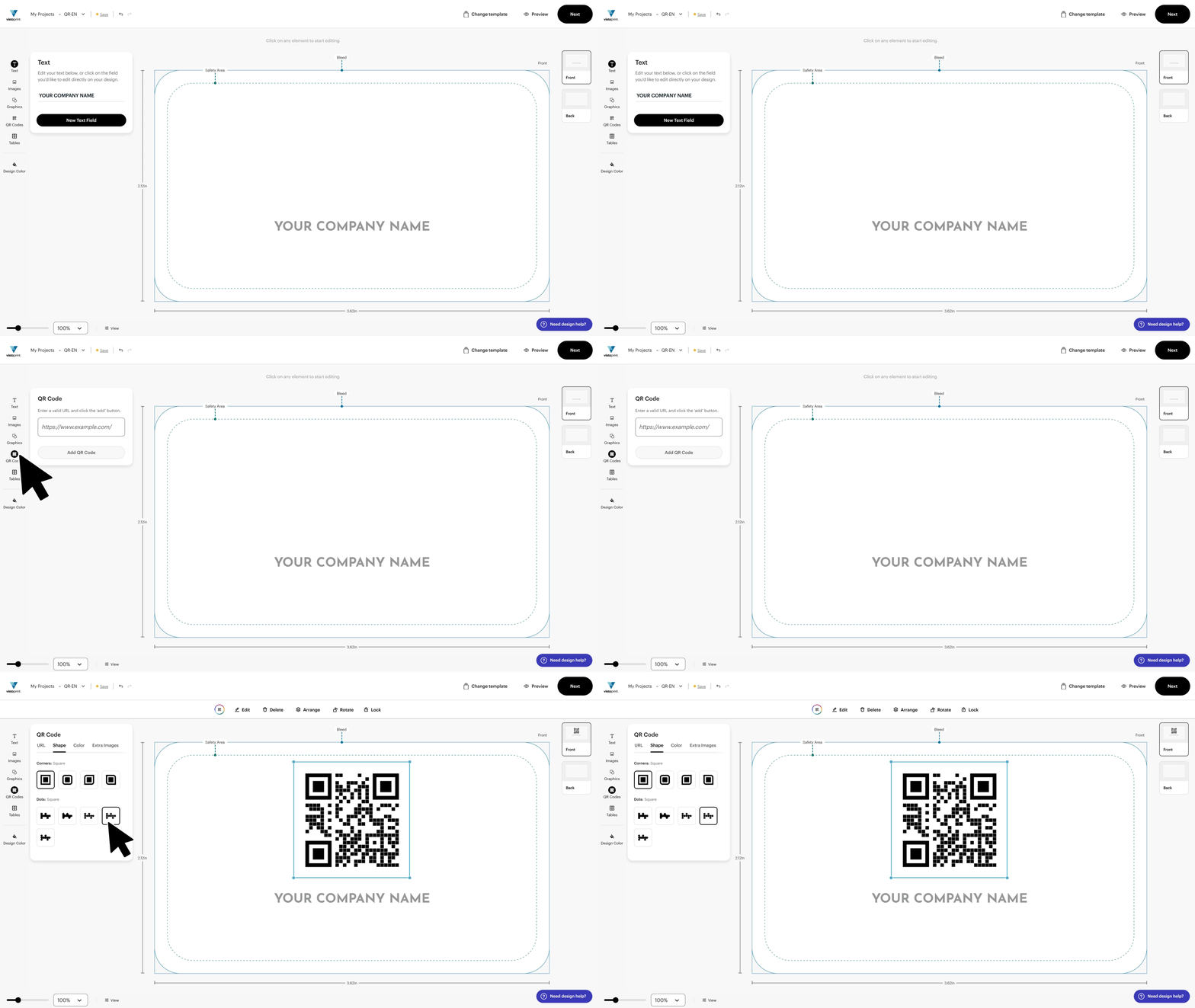
Select QR codes from the editor menu
You'll find this in the design tools on the left side of the screen.
Add the URL
Enter the full URL you want the QR code to link to, then select Add QR code.
Place and resize the QR code
Move the QR code and resize it to fit your layout.
Test the code
Use Preview to check how your design will print. Then scan the QR code with your phone to make sure it works.
Best practices for printing QR codes
Use a QR code that’s at least 31 mm × 31 mm (1.22 in × 1.22 in).
For business cards, placing the QR code on the back helps maintain a clean layout.
Avoid placing it near the edges, where it could be trimmed.
If you upload your own QR code, make sure the file is high-resolution and at least 300 dpi.

