
How do I match the colours in my design?
Last updated 16 June 2026.
Guide
Locate the design element, and then select Colour from the toolbar. You can copy the Hex number, or use the Eyedropper Colour tool to match colours.
1

Select the element

Choose the design element you want to recolour.
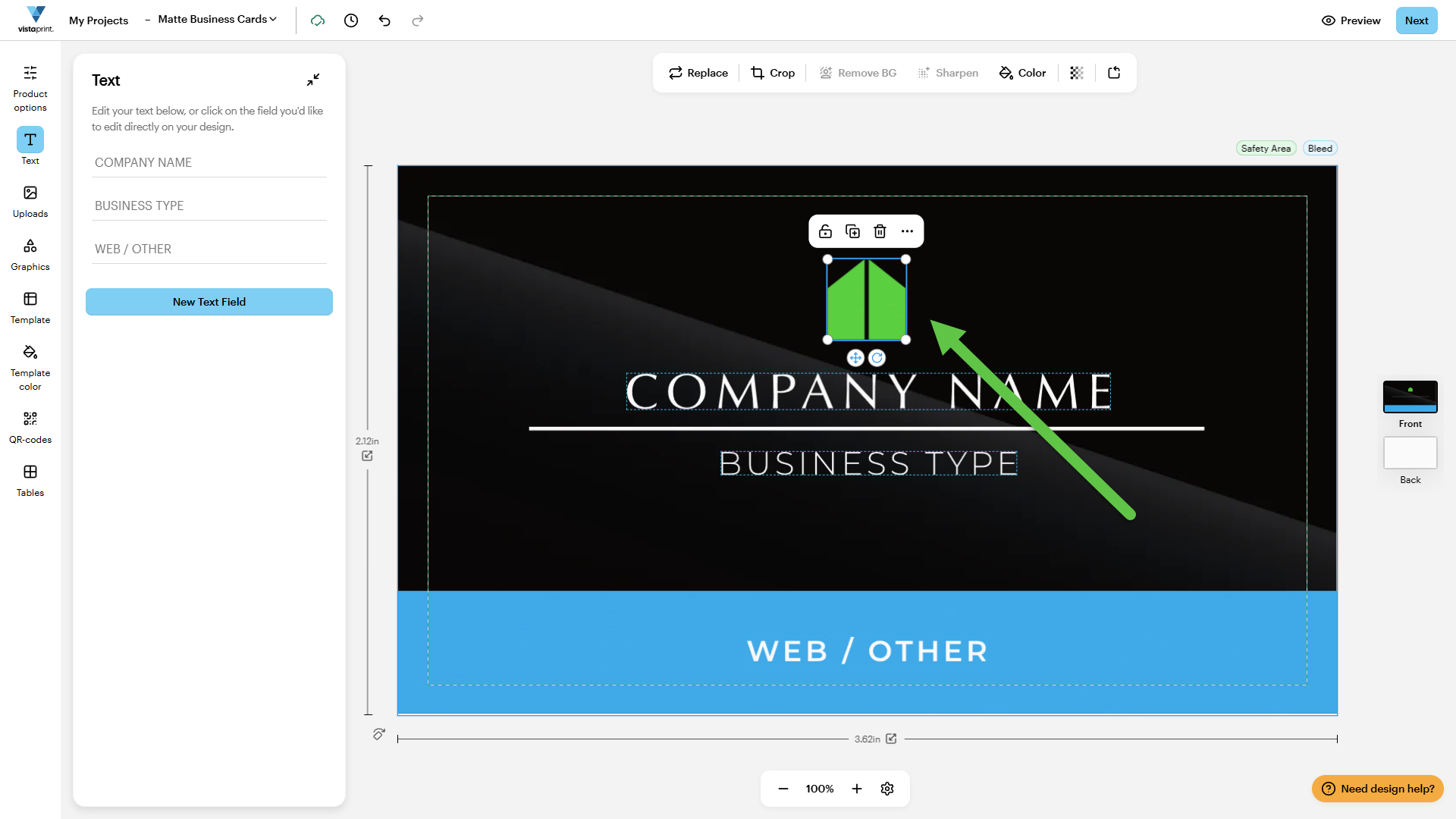
Design element selected on the canvas to change its colour.
2

Open Colour

Select Colour from the toolbar. 
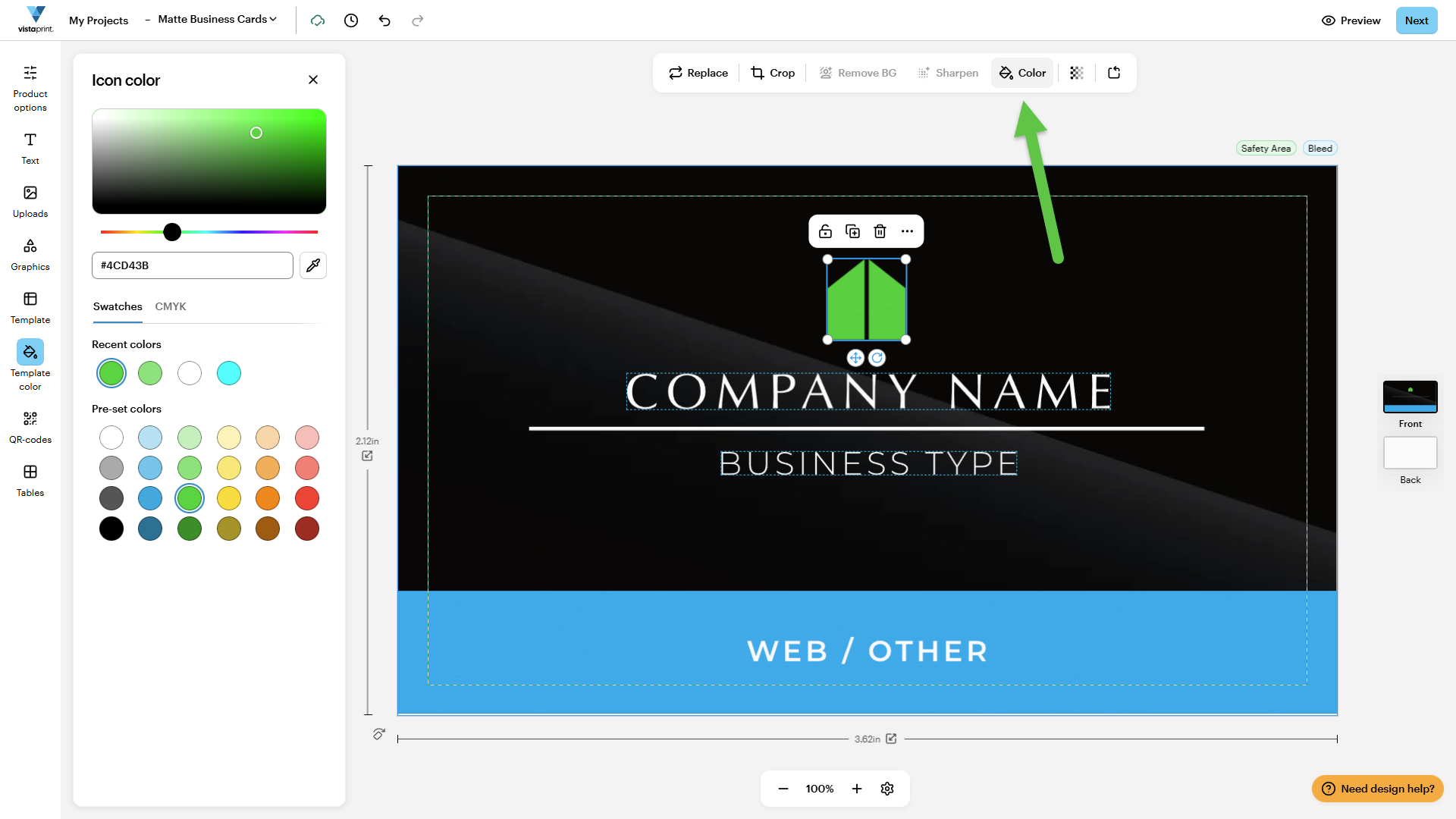
Colour tool selected from the toolbar to open colour options.
3

Choose a colour method

Select the hex colour field or choose the Eyedropper tool.
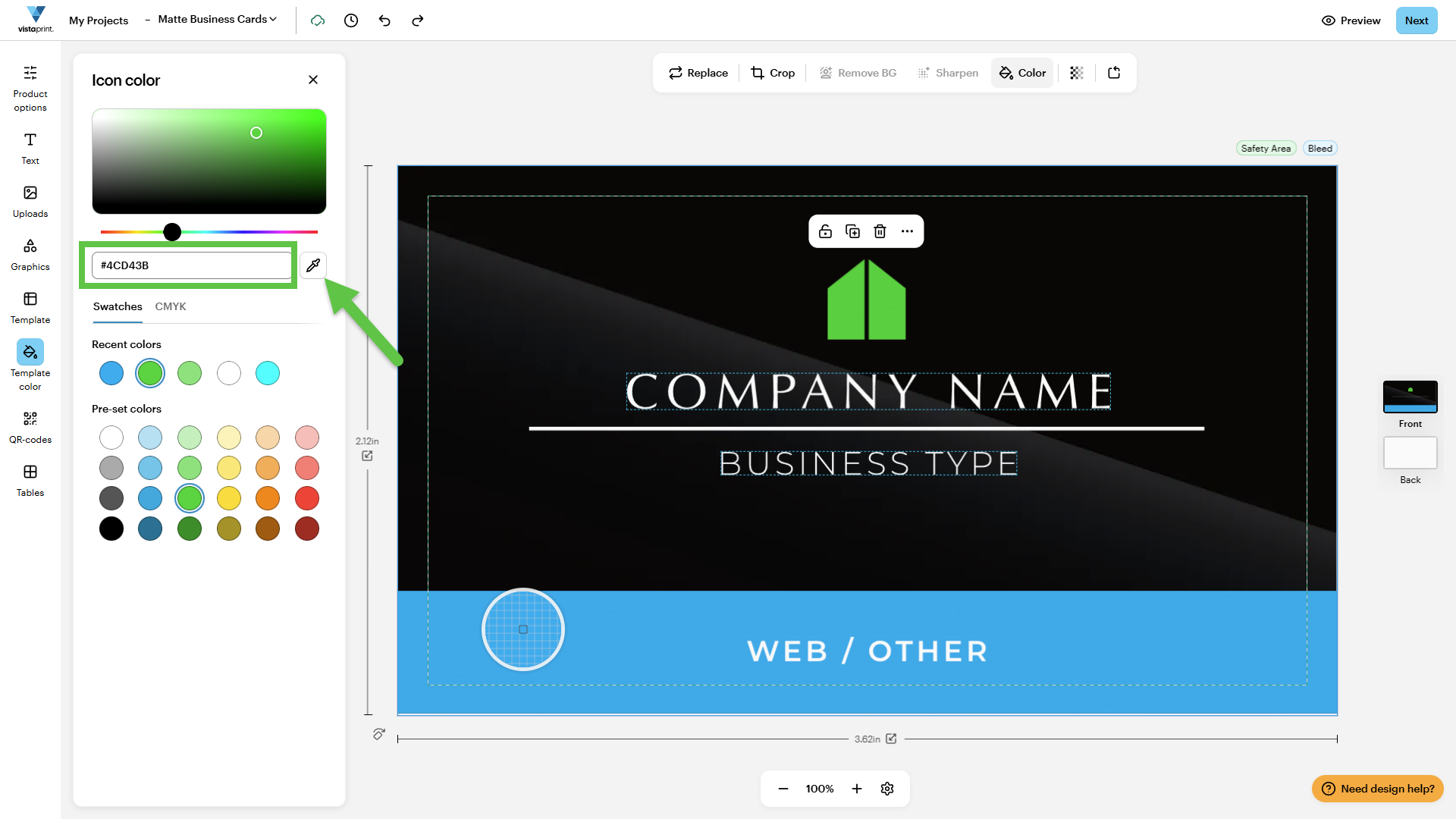
Hex colour field selected in VistaPrint Design Studio to enter a custom colour.
4

Apply the colour

If you’re using the Eyedropper, select a colour anywhere in your design to apply it to the selected element. If you’re using a hex code, add it in the colour field.
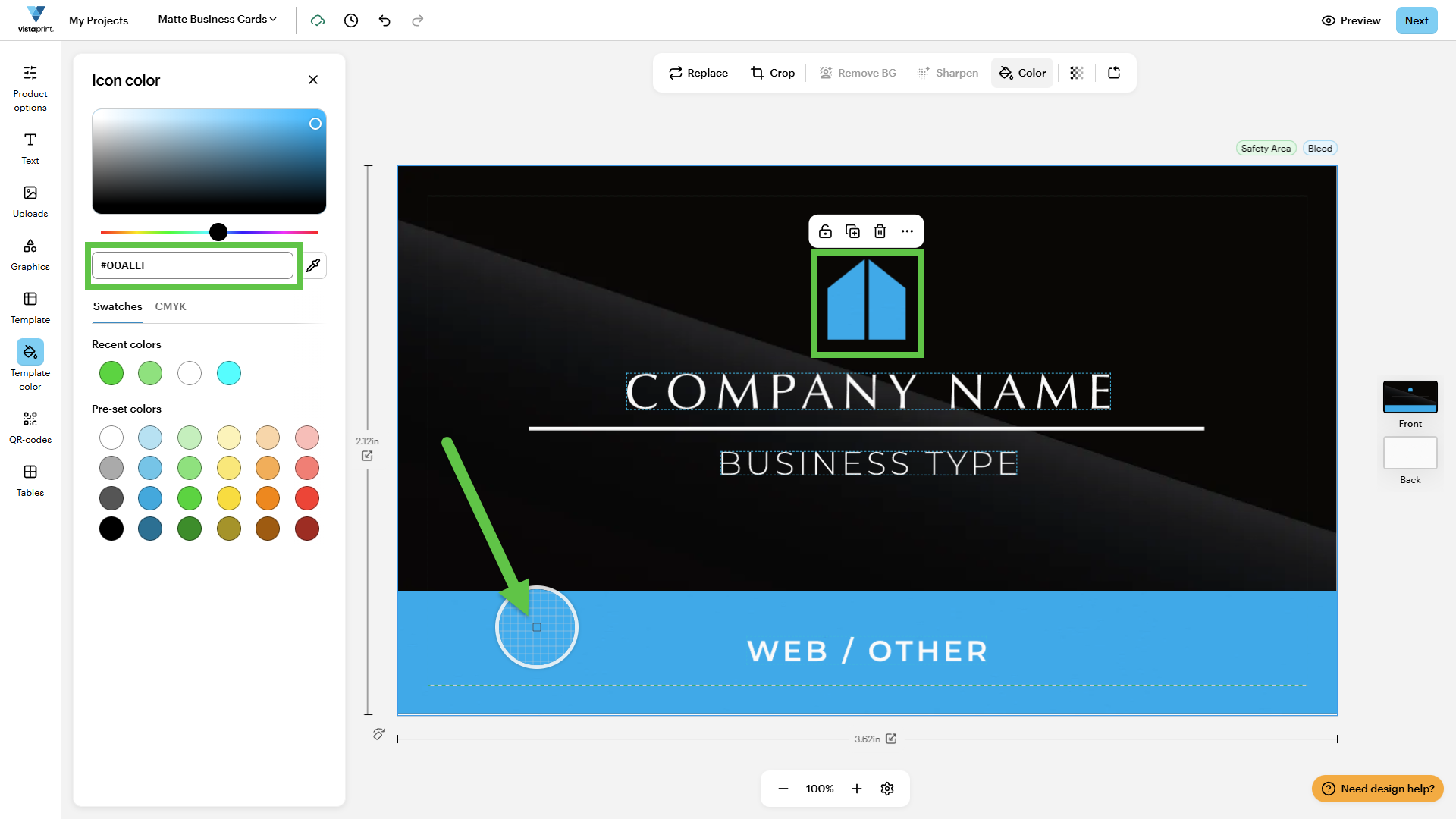
Eyedropper tool selecting a blue colour from a business card design in VistaPrint Design Studio.

Was this article helpful?
Learn how we use your feedback

Connect live with Customer Support

Need help?

Contact Us
