

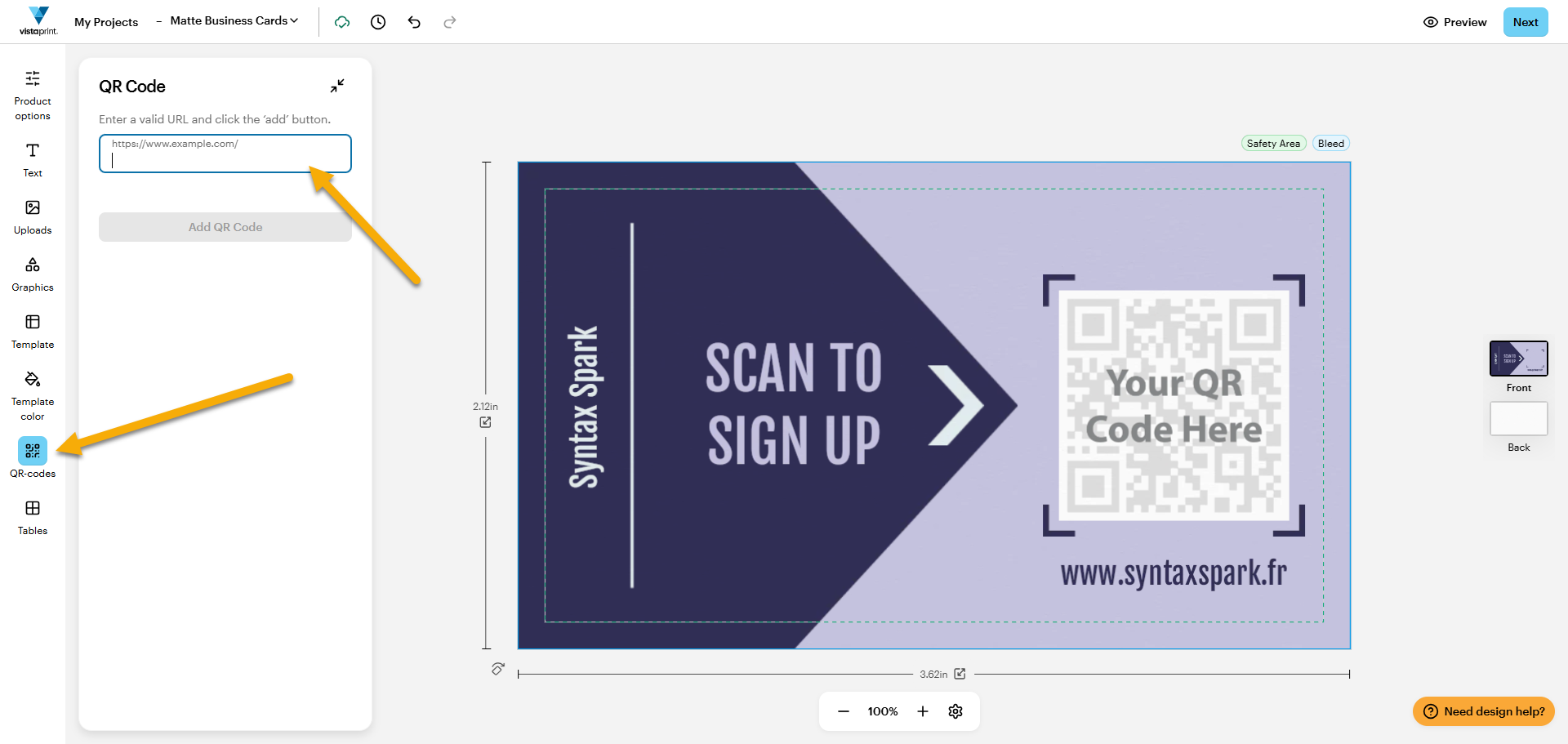
Incorrect or broken link
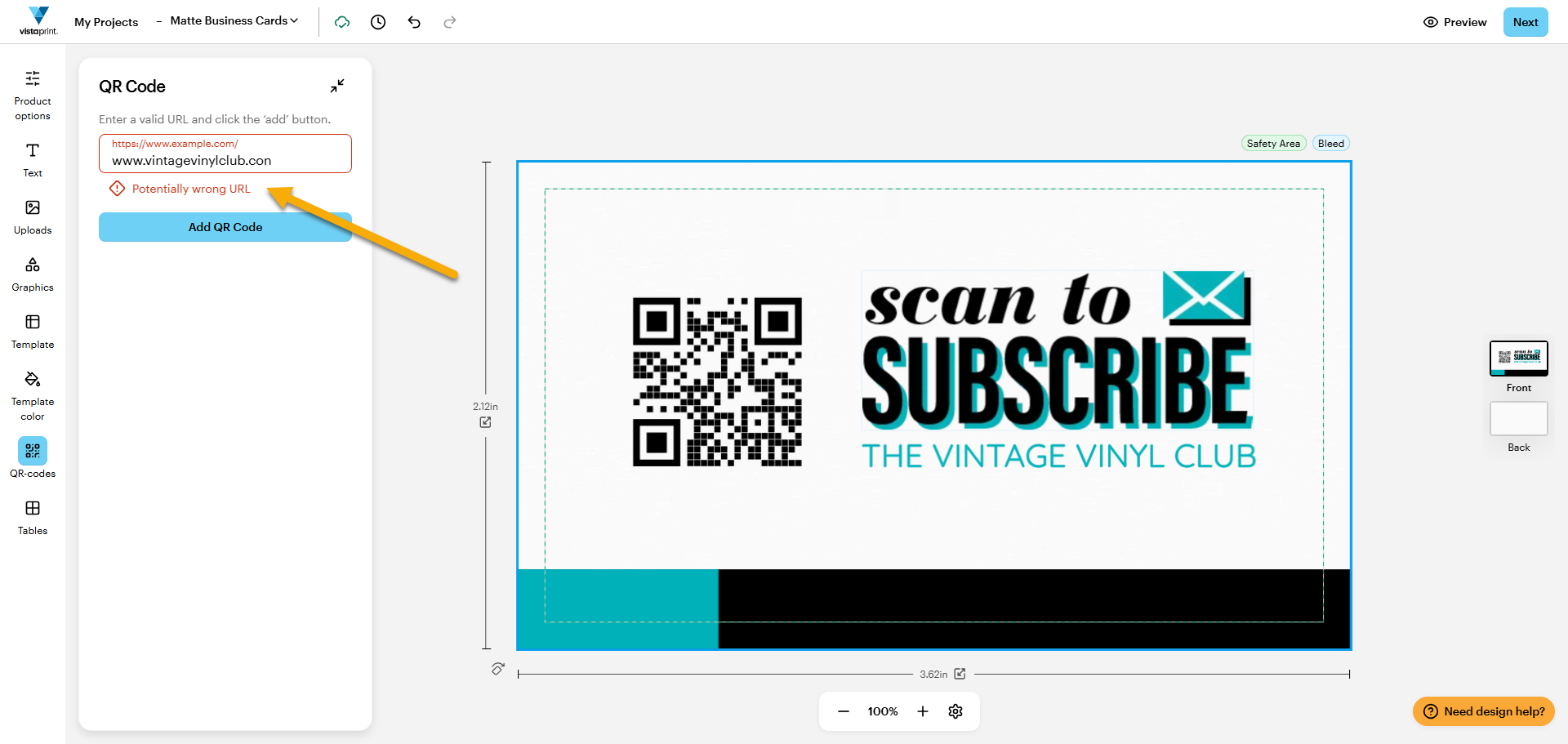
Check if your link works and displays the right content. If it does, make sure the URL is spelled correctly. When you create a QR code in the design studio, you’ll receive a warning if your link might be broken or contains a typo. This serves as a reminder to double-check your link.
Bad use of space
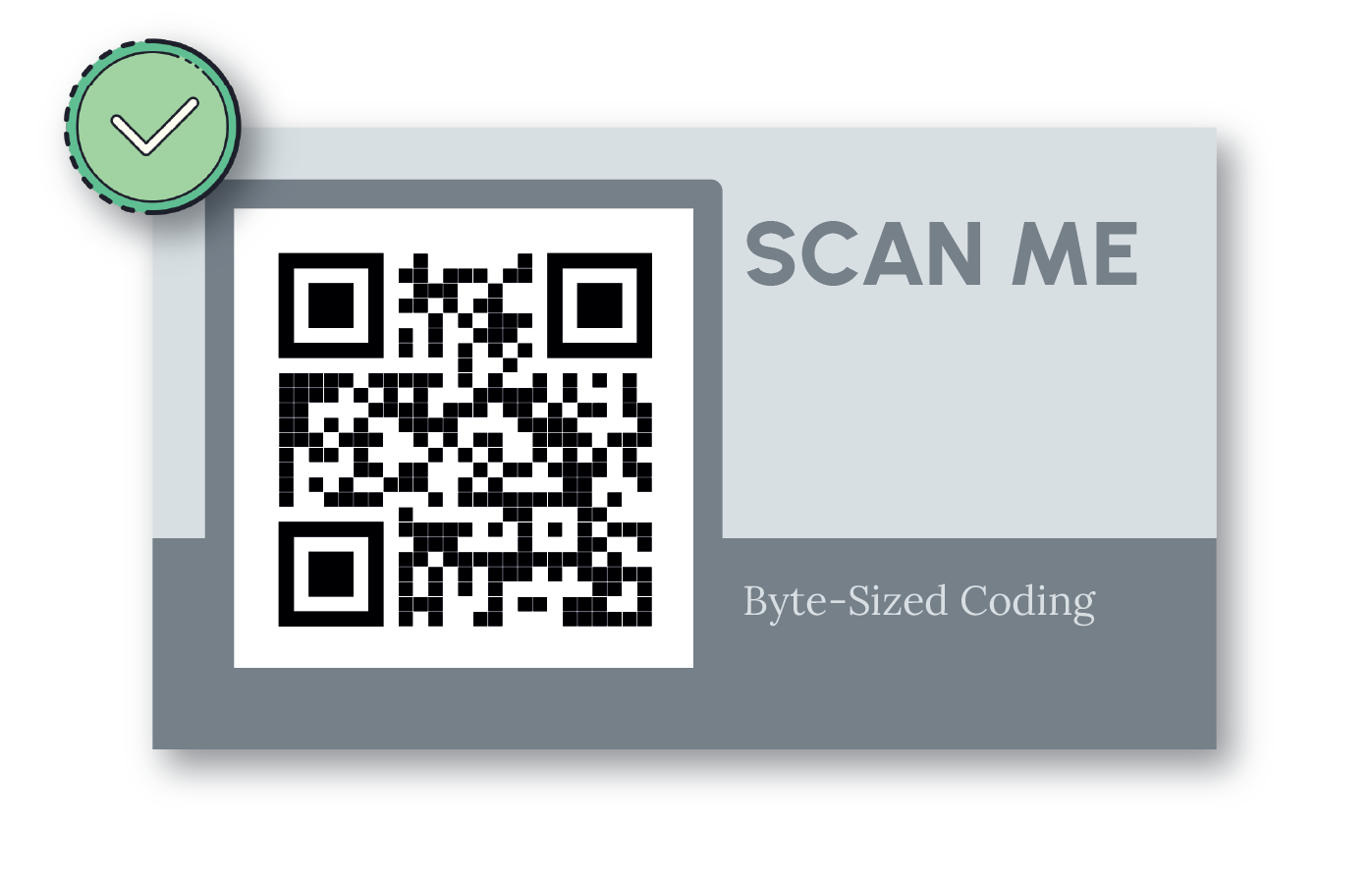
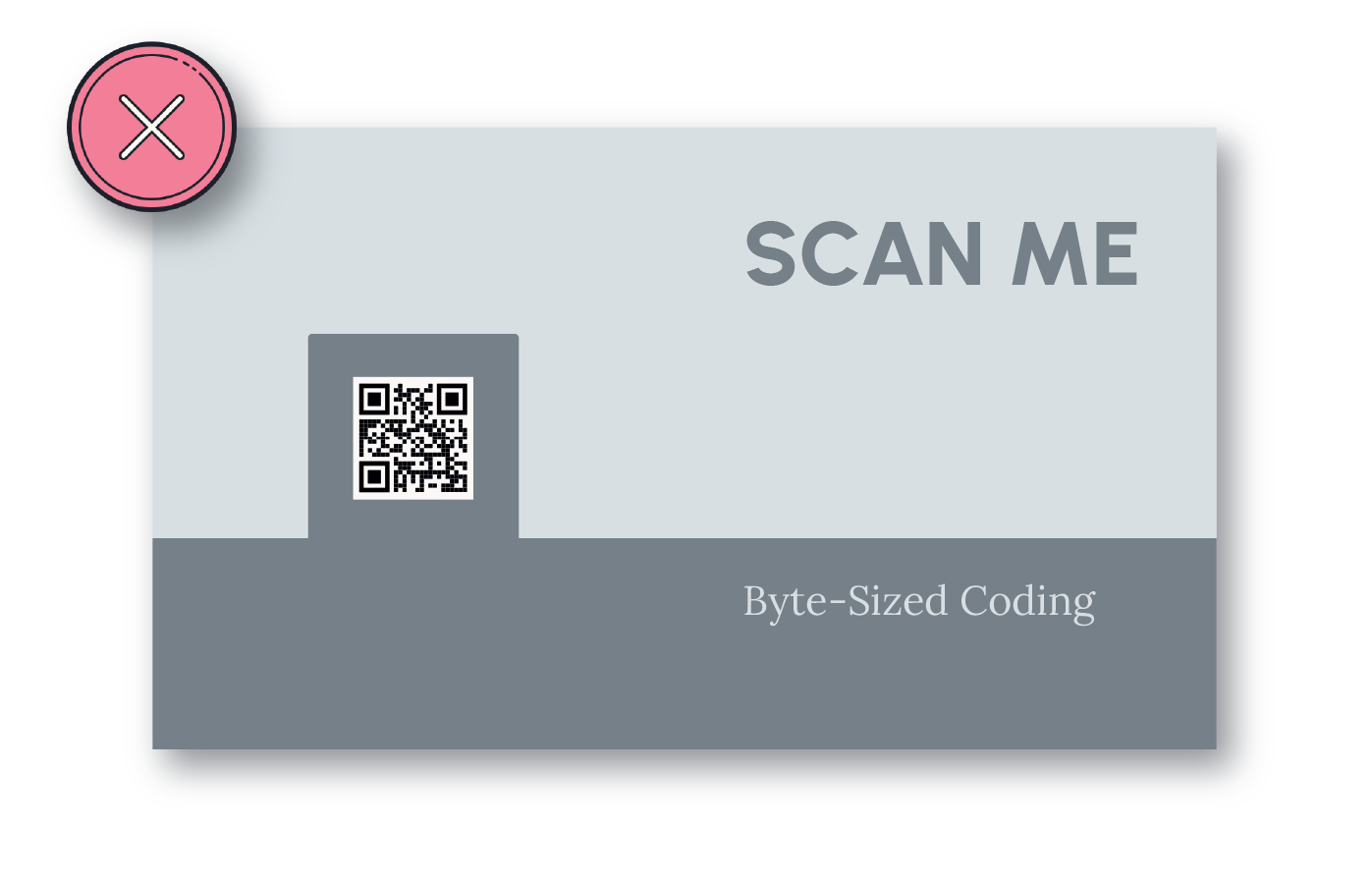
QR codes need a buffer of empty space to scan correctly. We call this the quiet zone. To ensure your quiet zone is large enough, follow these guidelines:
Leave a clear border
Ensure the empty space around the code is at least four times the size of the small squares within the code.
Avoid edges and folds
Keep your code away from the edge of the paper or any packaging folds that might distort the pattern.
Minimise clutter
Ensure no text, logos or images touch or overlap the code.


Poor sizing
Make sure your QR code is at least 2 cm x 2 cm. Bigger is usually better.
Low contrast
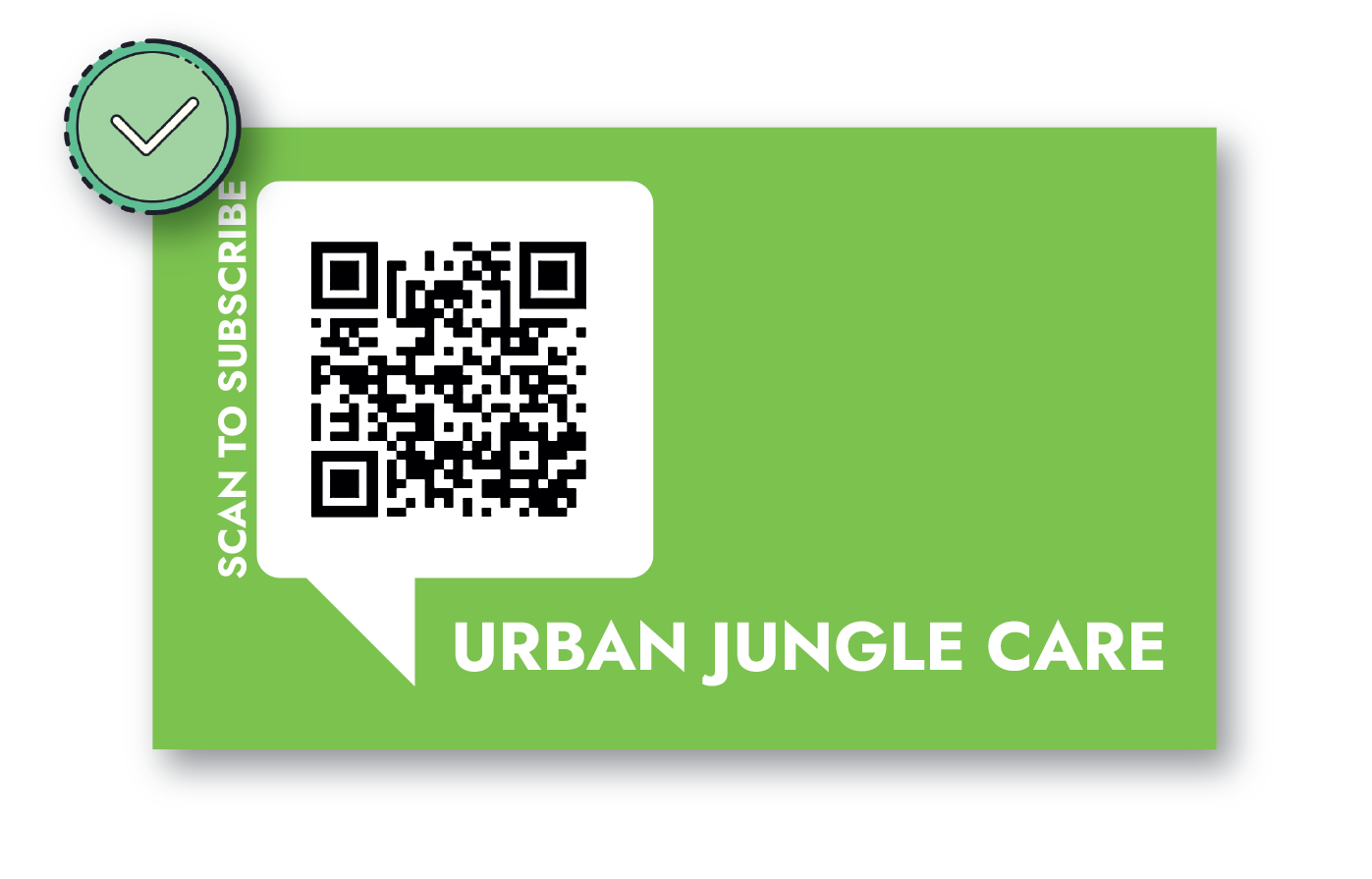
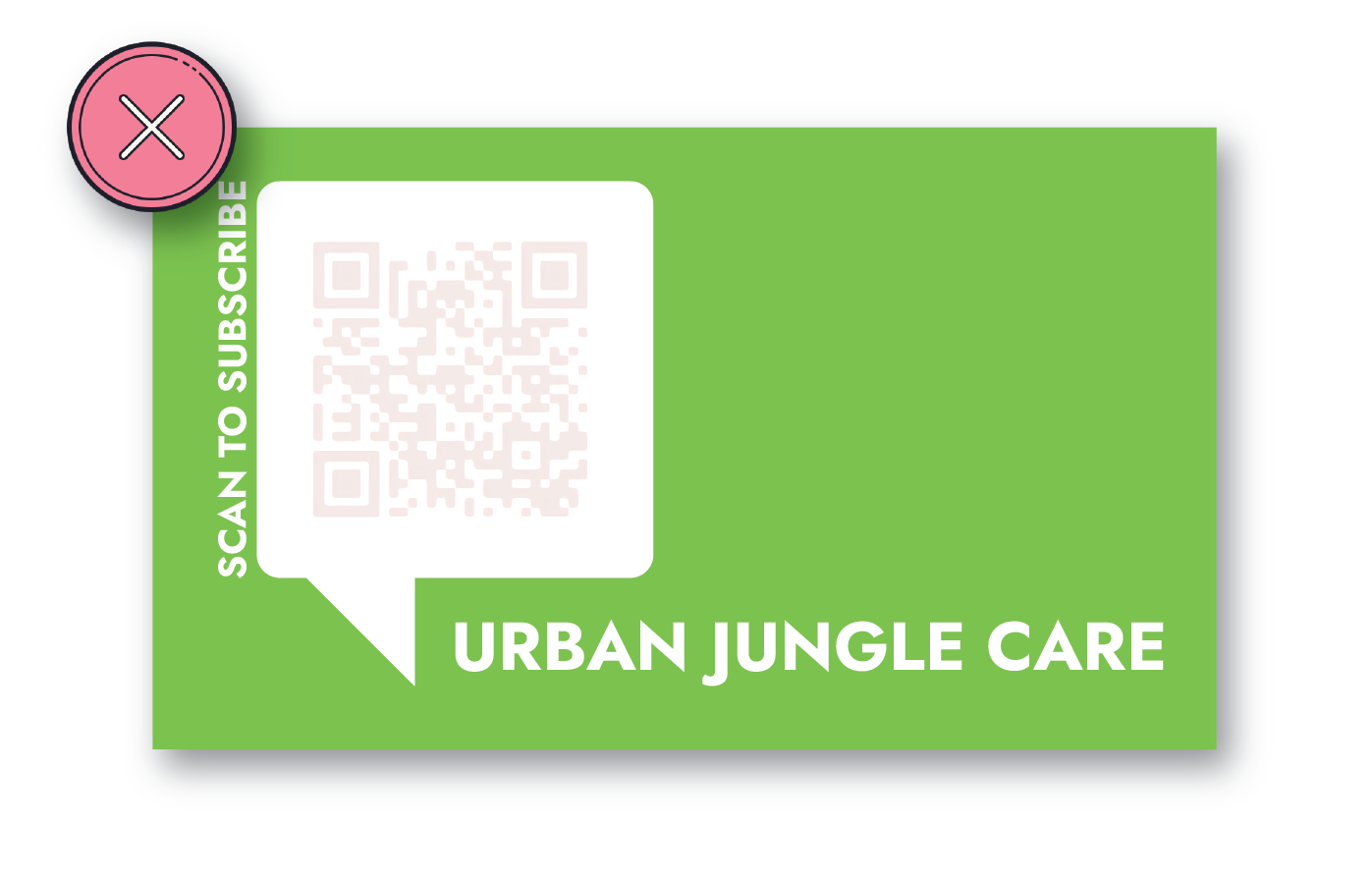
Ensure the contrast between the QR code and the background is high.
Use black on white for the best results
Avoid colours that are too similar
Use single-colour backgrounds without patterns
Blurred image
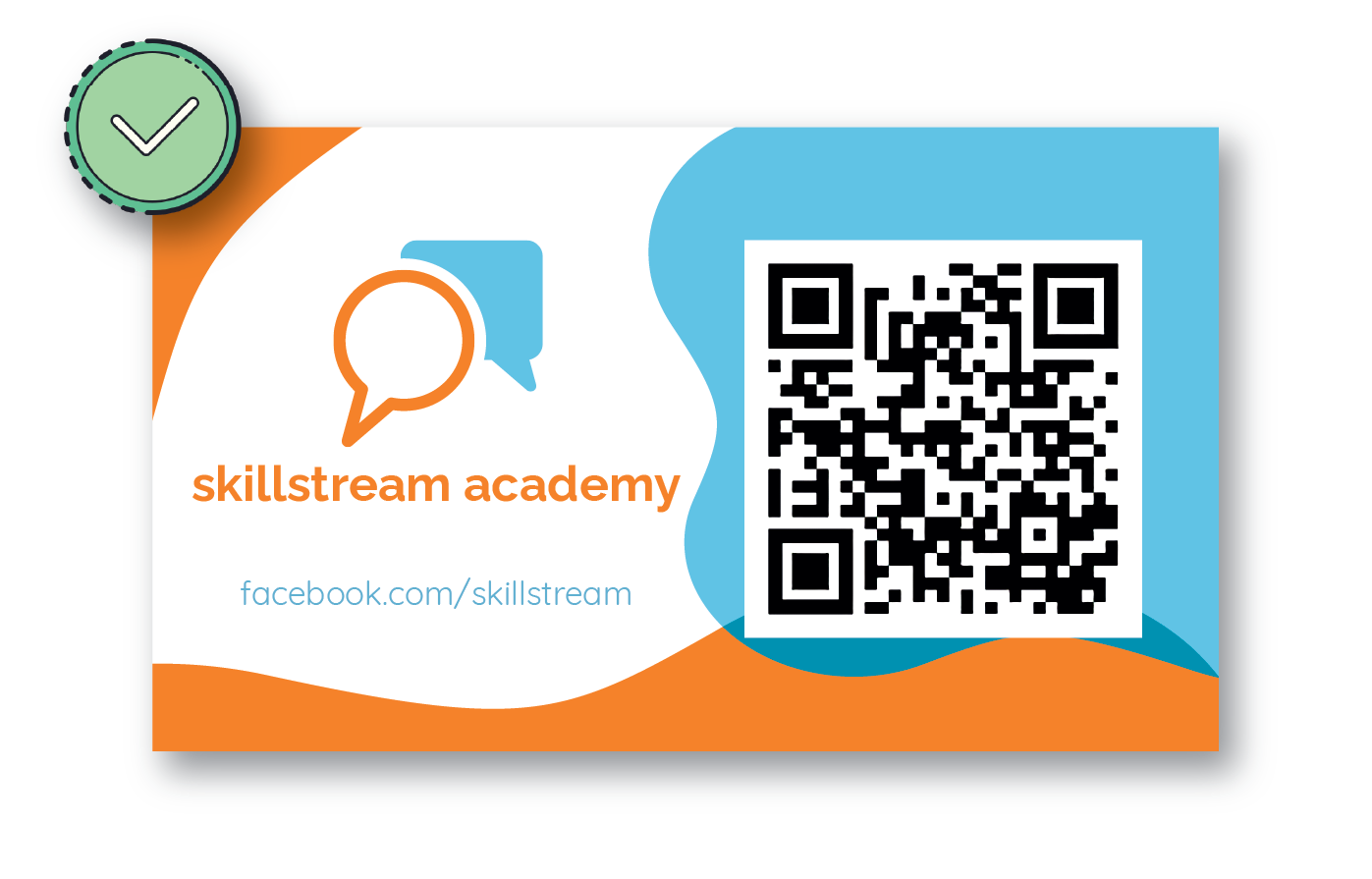
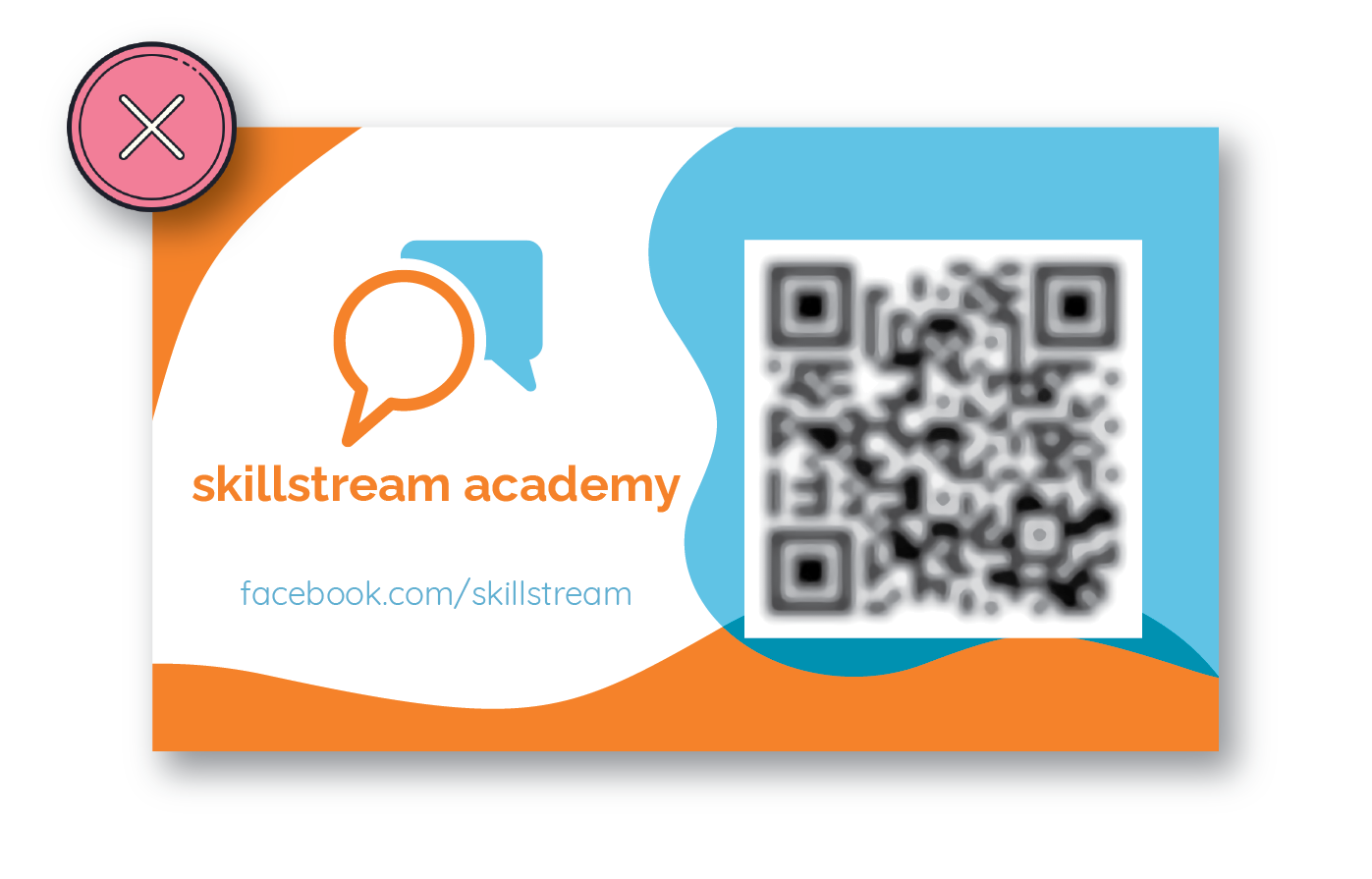
Make sure your QR code is sharp. A blurry QR code is difficult to scan.
Materials and finish
Shiny materials can reflect light and make QR codes hard to scan. We recommend the following:
Use matte instead of gloss
Avoid using spot gloss directly on the QR code
Surface shape
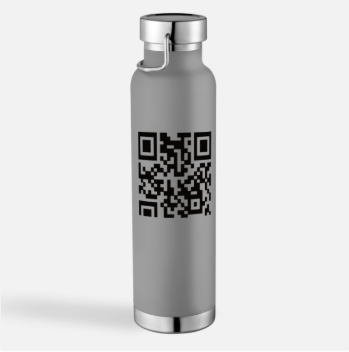
If you’re printing your QR code on curved items like mugs or pens, the curve can distort your QR code. Make sure your QR code isn’t too large for the space. If it wraps around the surface, it won’t scan.
How can I test if my QR code works?
Before you order, create a PDF proof and check it for the actual size. You can then scan your QR code to check if it works.

Still need help?
If you’re still running into issues with getting your QR code right, contact us.
