
Can I customise the background colour of my sticker?
Last updated 16 June 2026.
Guide
Yes, you can customise your sticker’s background colour in the Colour tab in the left panel. Choose a colour or select No colour.

Steps to change the background colour

1

Select the Background tab

In the left panel, select the Background tab to modify the sticker’s existing background colour. 
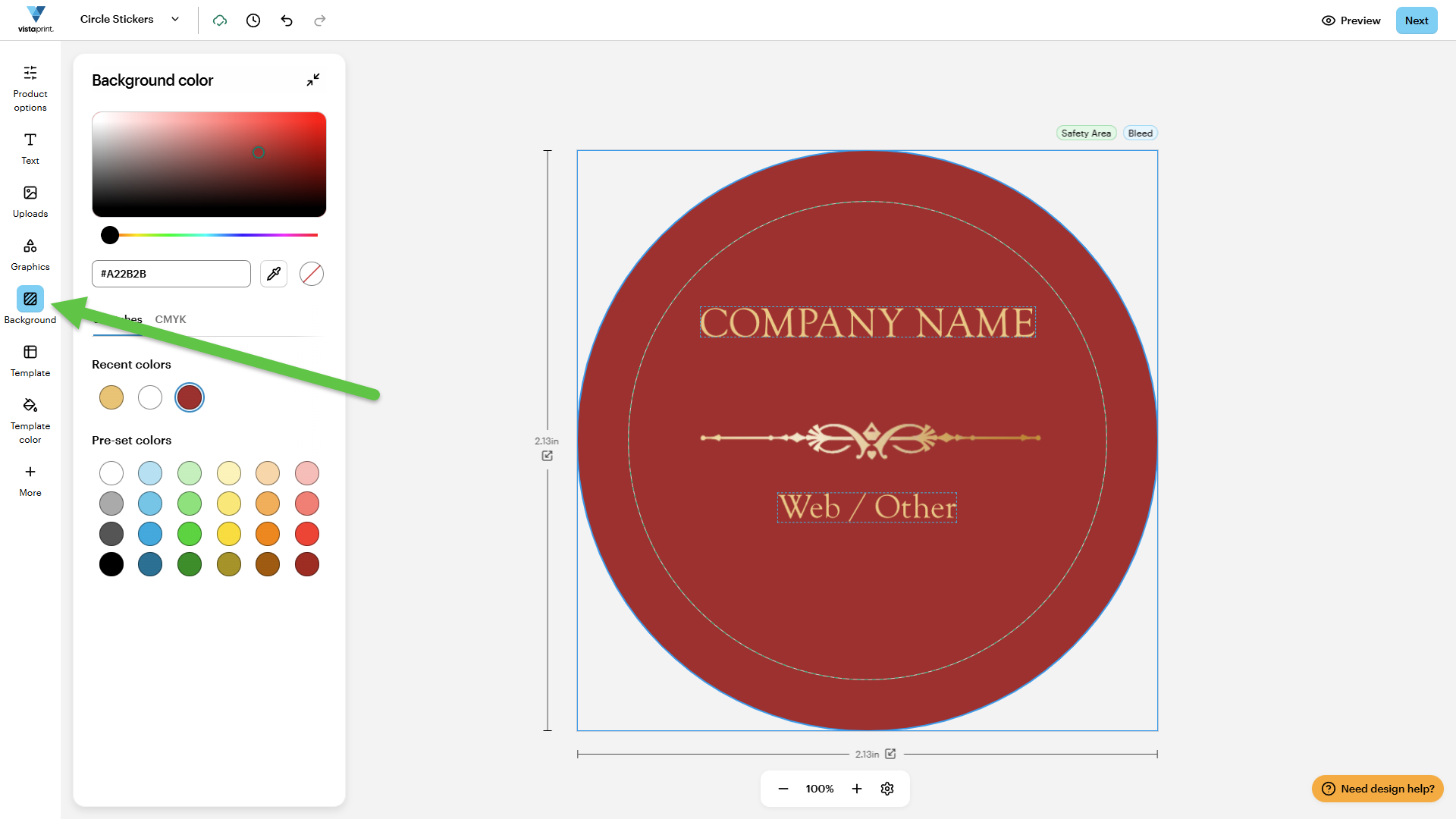
VistaPrint Design Studio showing a sticker with an arrow pointing to the Background button on the left panel.
2

Choose a colour

Select a background colour from the available colour palette.
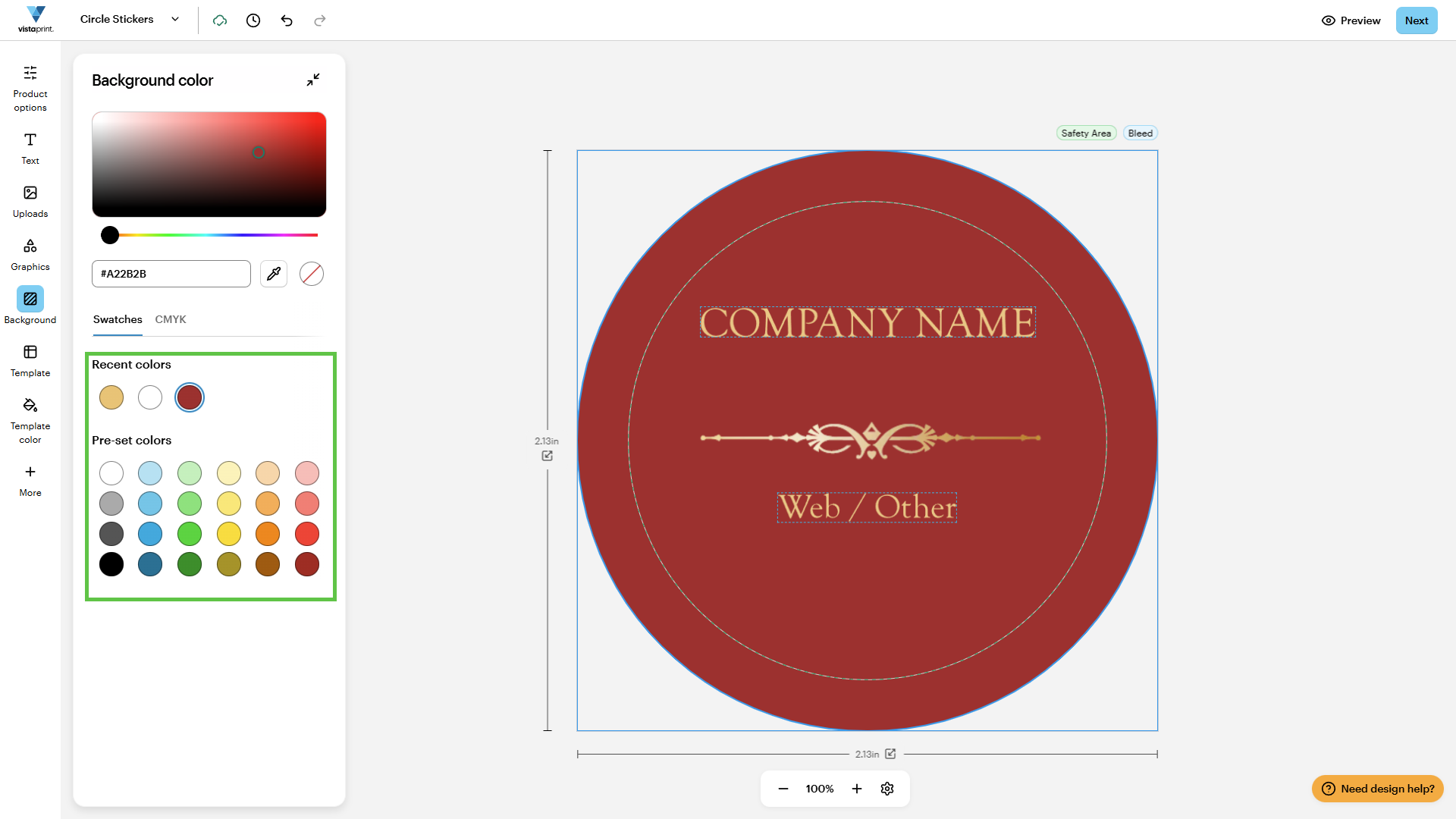
VistaPrint Design Studio showing a sticker with both the palette colours and the HEX code entry highlighted.
3

Use the Eyedropper

Pick a colour directly from your design using the Eyedropper tool.
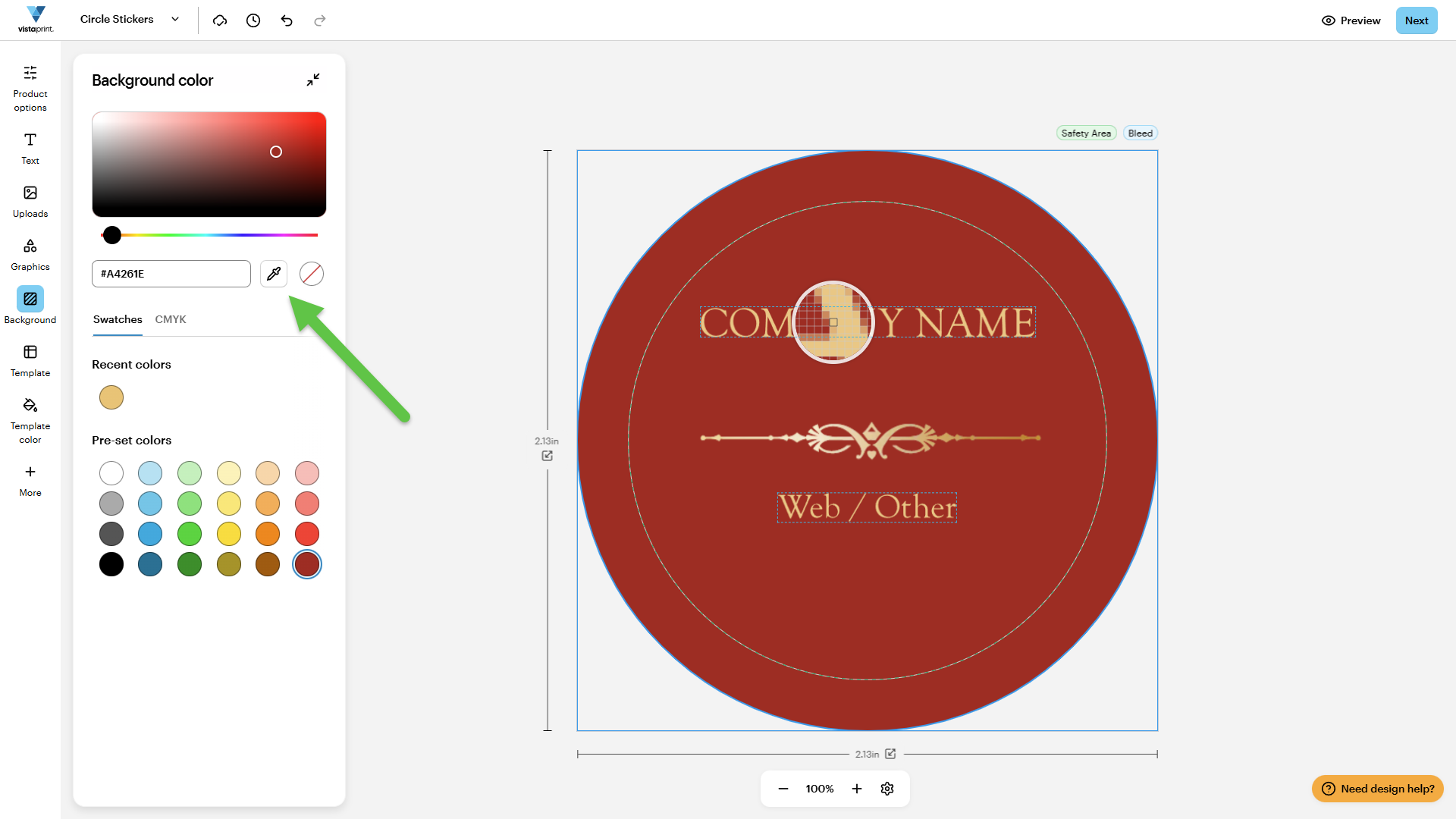
VistaPrint Design Studio showing a sticker with an arrow pointing to the eyedropper tool.
4

Enter a custom colour

Specify a custom colour by entering a HEX code or adjusting the CMYK values.
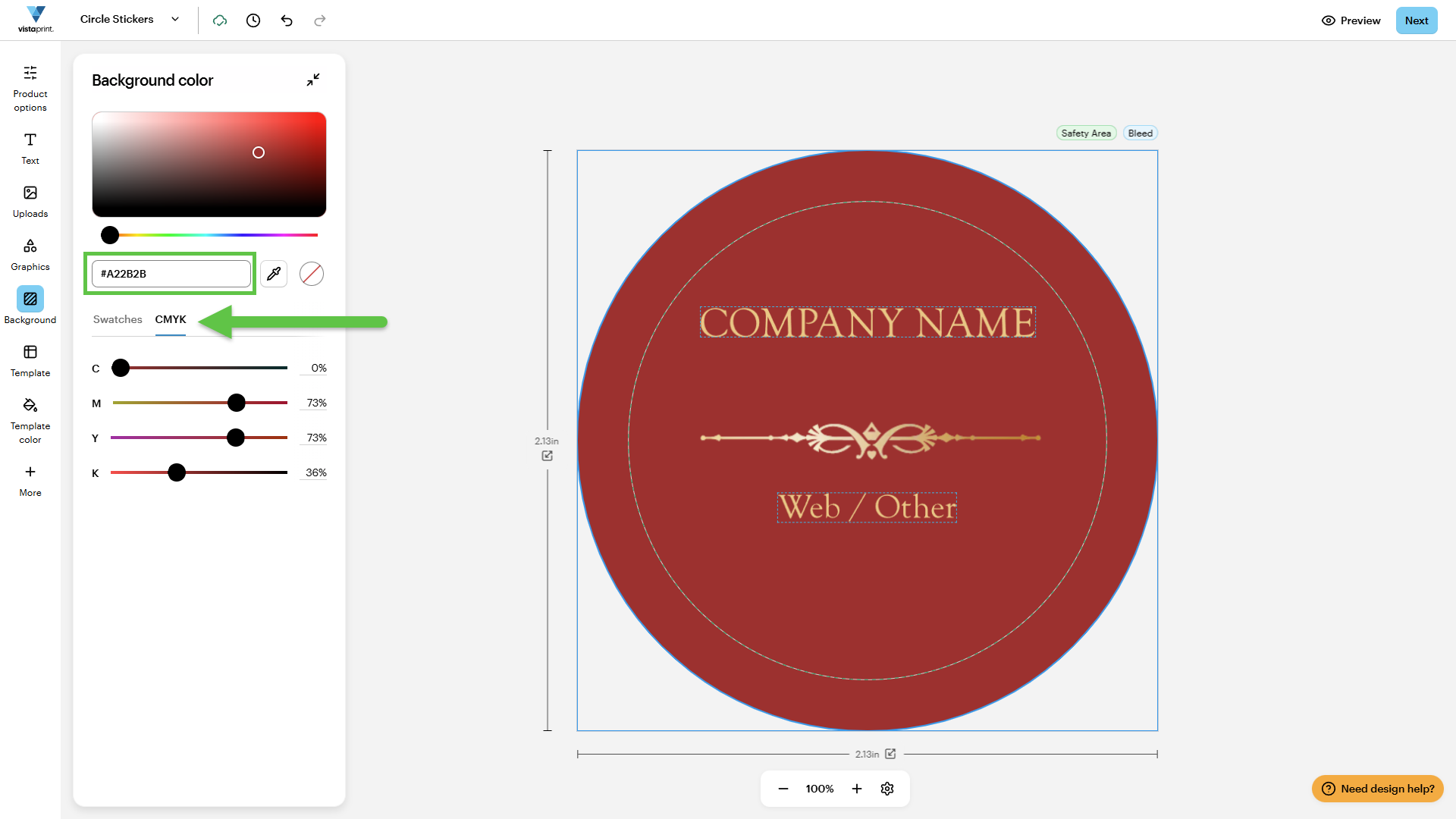
VistaPrint Design Studio showing a sticker with an arrow pointing to the CMYK button on the left panel.
5

Use a transparent background

Select No Colour (the white circle with a red line) to remove the background.
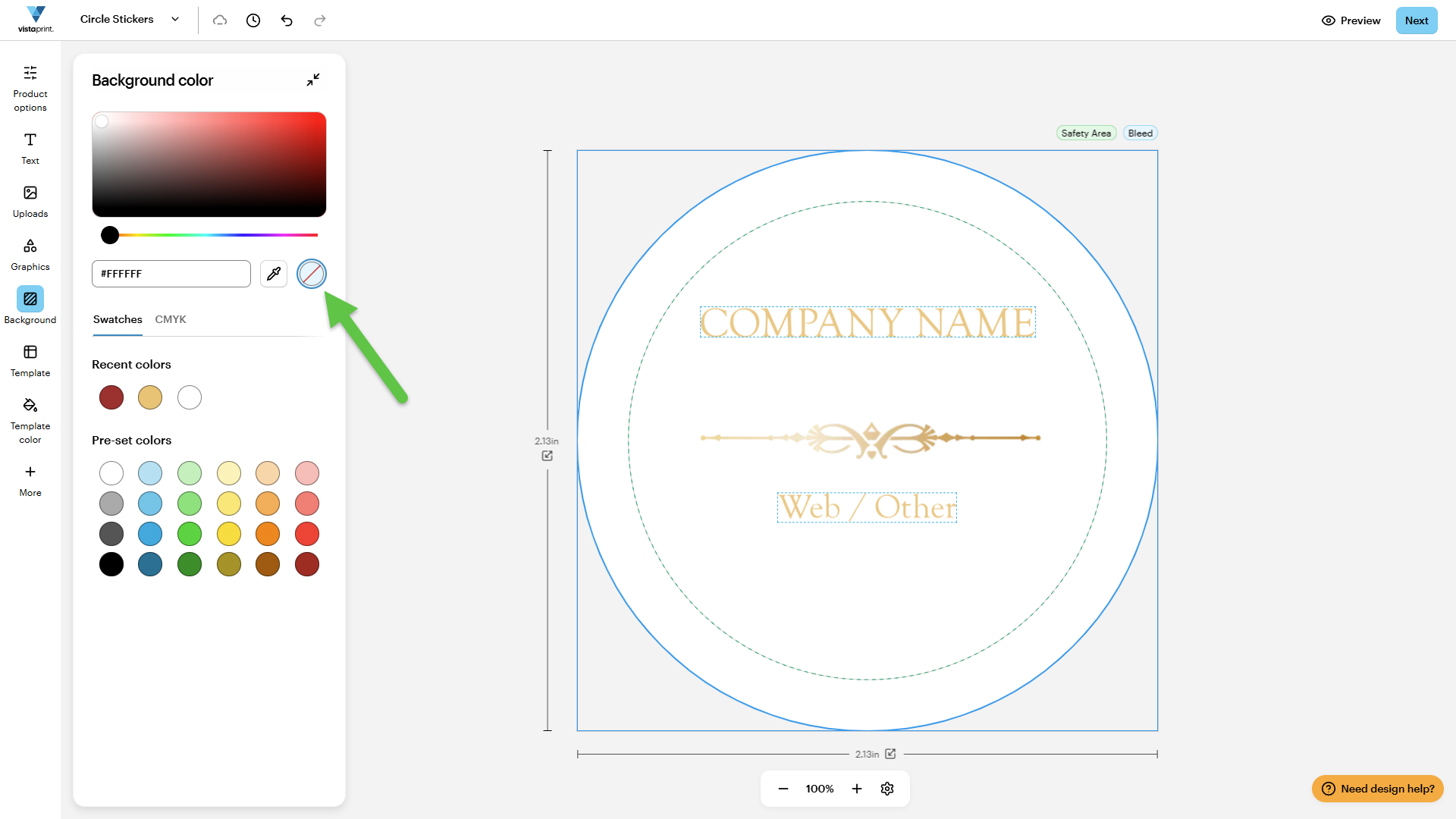
VistaPrint Design Studio showing a sticker with a white background and an arrow pointing to the No colour button in the background tab.

Was this article helpful?
Learn how we use your feedback

Connect live with Customer Support

Need help?

Contact Us
