

When you've added a picture to your calendar, you can click on it to make changes. This allows you to adjust the size, framing and format of your image.
Zooming your picture
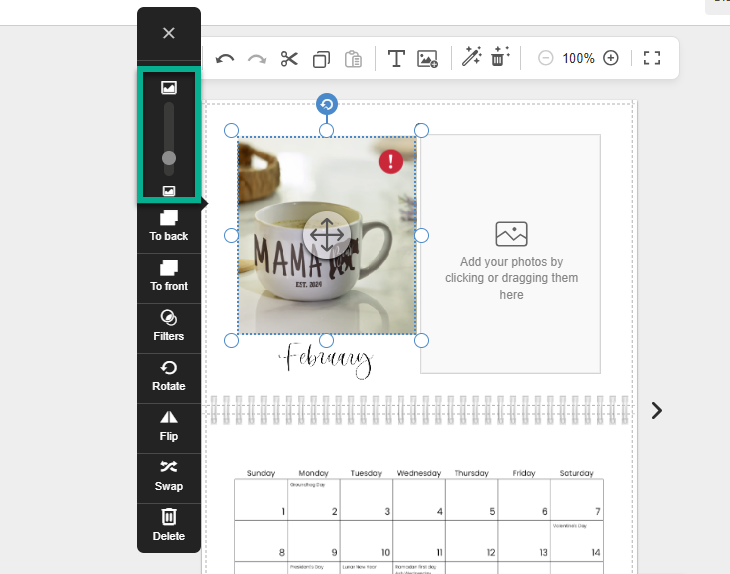
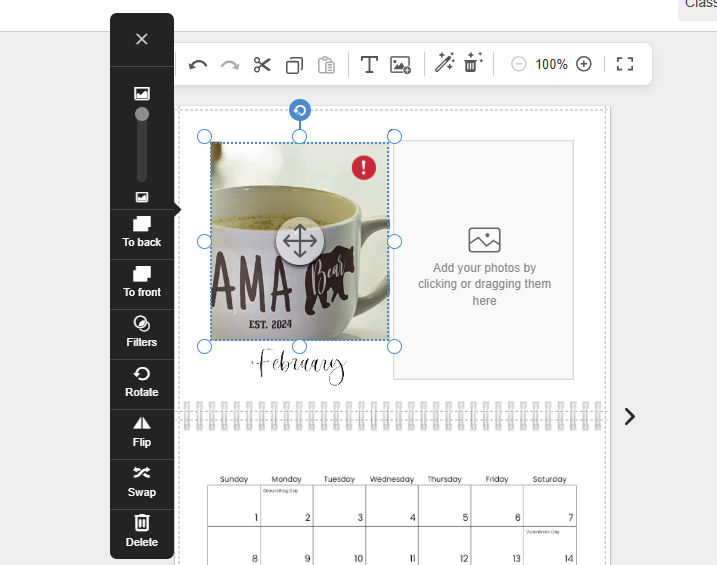
Use the image size slider to make your picture larger or smaller. The picture will stay in the same spot, but be zoomed in or out.
Adjusting the size of your picture
To make your picture larger or smaller on the page, drag one of the six handles along the edge of the picture:
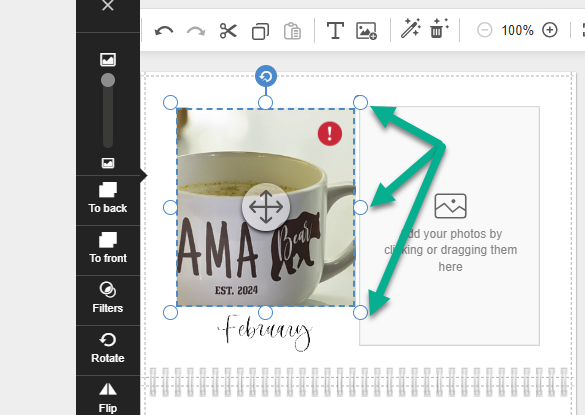
If you select a corner handle, the image will keep its proportions. If you select a handle along the edge, you can adjust the width or height of the image. The image won't be stretched when you adjust the size of it.
Let go of the marker when the image has the right size.
Adjusting the framing of your picture
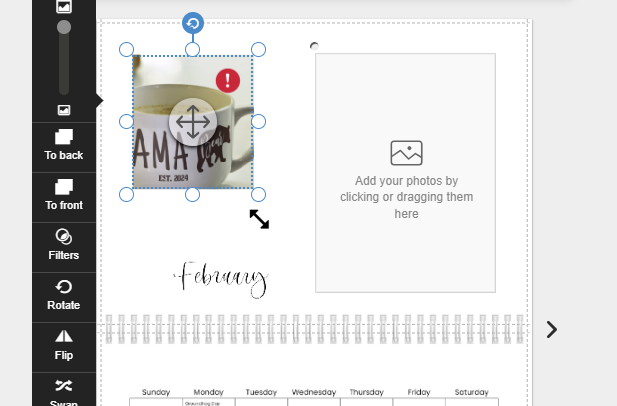
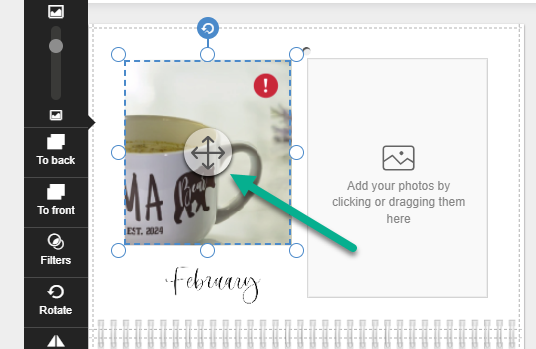
If you've zoomed in on a picture, or the image is inside a placeholder, it may be cropped so only part of the image is shown. You can adjust what's included in the frame. To do so, select the Move Tool with the four-headed arrow. Then, drag the image around to adjust what is shown:
Removing placeholders:
When an image is added to a placeholder in a layout, it is automatically cropped to fit the placeholder. To show the entire image, remove the placeholder, and then add the image to the page.
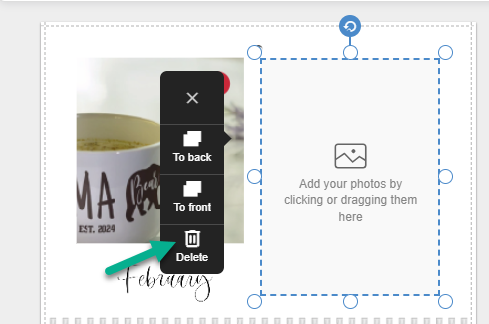
To remove the placeholder, select it and choose Delete from the menu:
You can then add an image by selecting it from the Photos tab in the menu.

