Can I adjust the cutline of my sticker?
Last updated 17 June 2026.
Yes, you can adjust the cutline of some stickers using the Cutline button in VistaPrint Studio.

Which stickers can I adjust?

You can adjust the cutline for:

Steps to adjust the cutline 

  1. Select Cutline

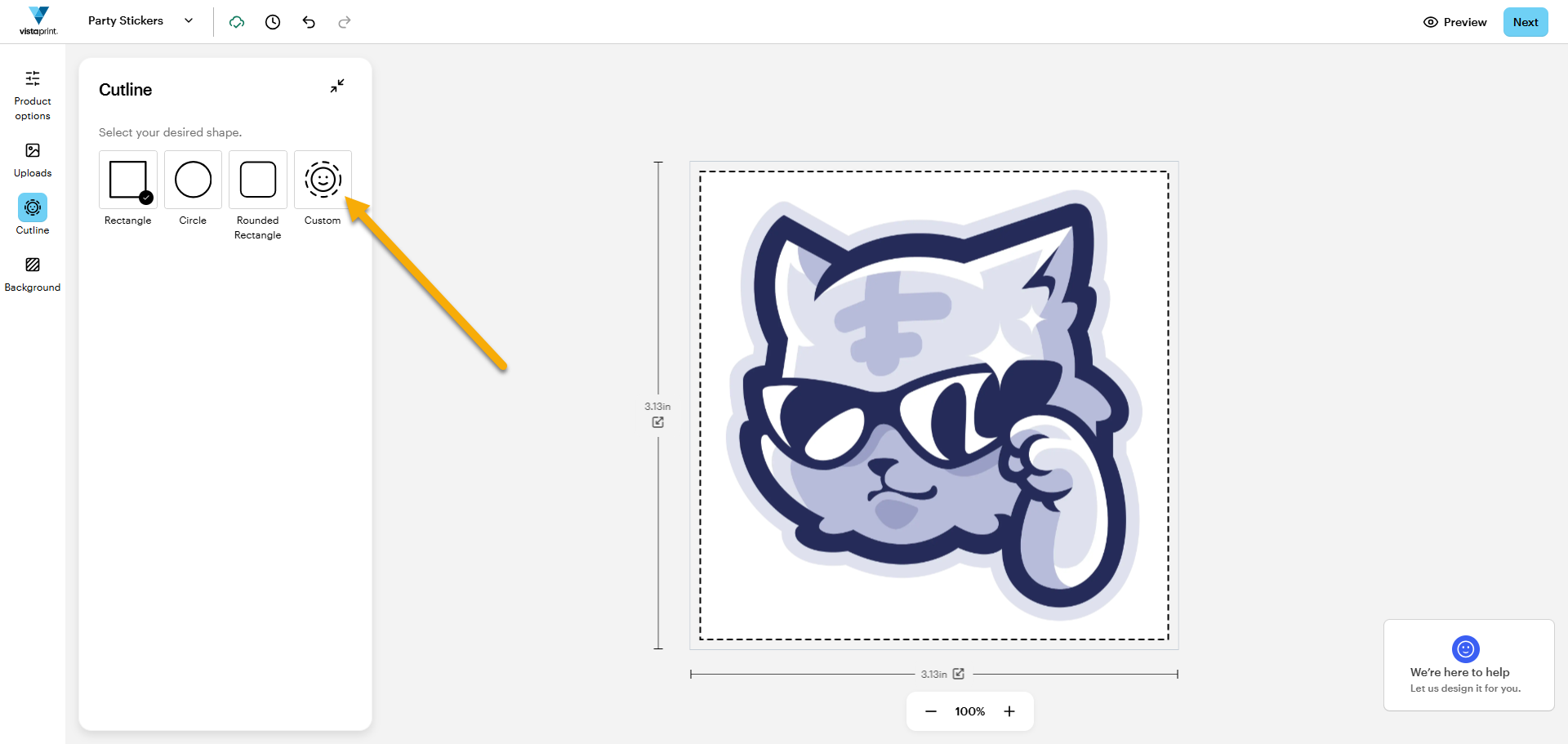
    Find the Cutline button in the toolbar on the left.

    A sticker design in the VistaPrint Studio with an arrow pointing to the Cutline button in the toolbar on the left.
  2. Choose a cutline option

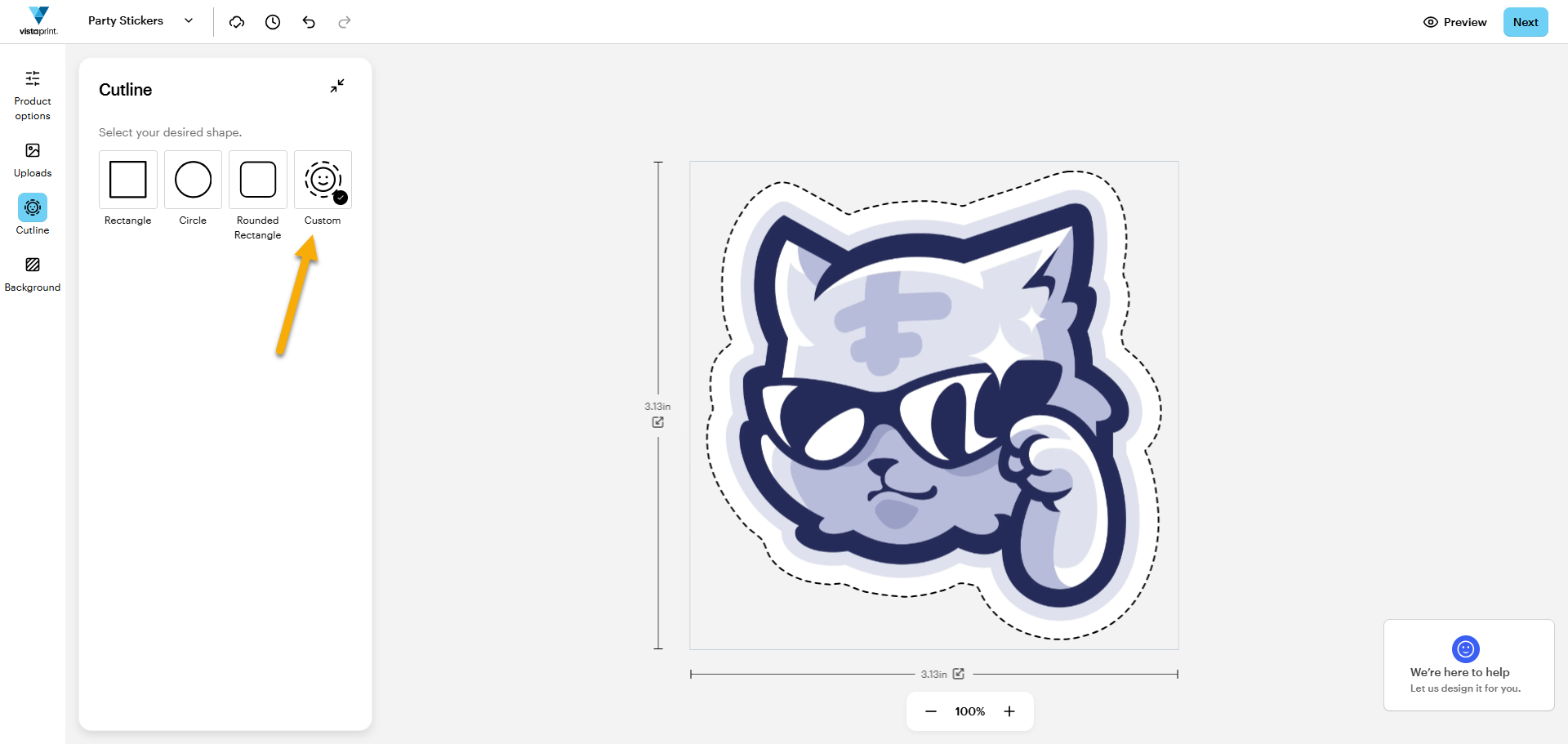
    Select the cutline style you want. The selected option will appear with a tick. 

    A sticker design in the VistaPrint Studio with an arrow pointing to one of the Cutline options.
  3. Select Custom for a shape cutline

    Use Custom if you want the cutline to follow the shape of your design.
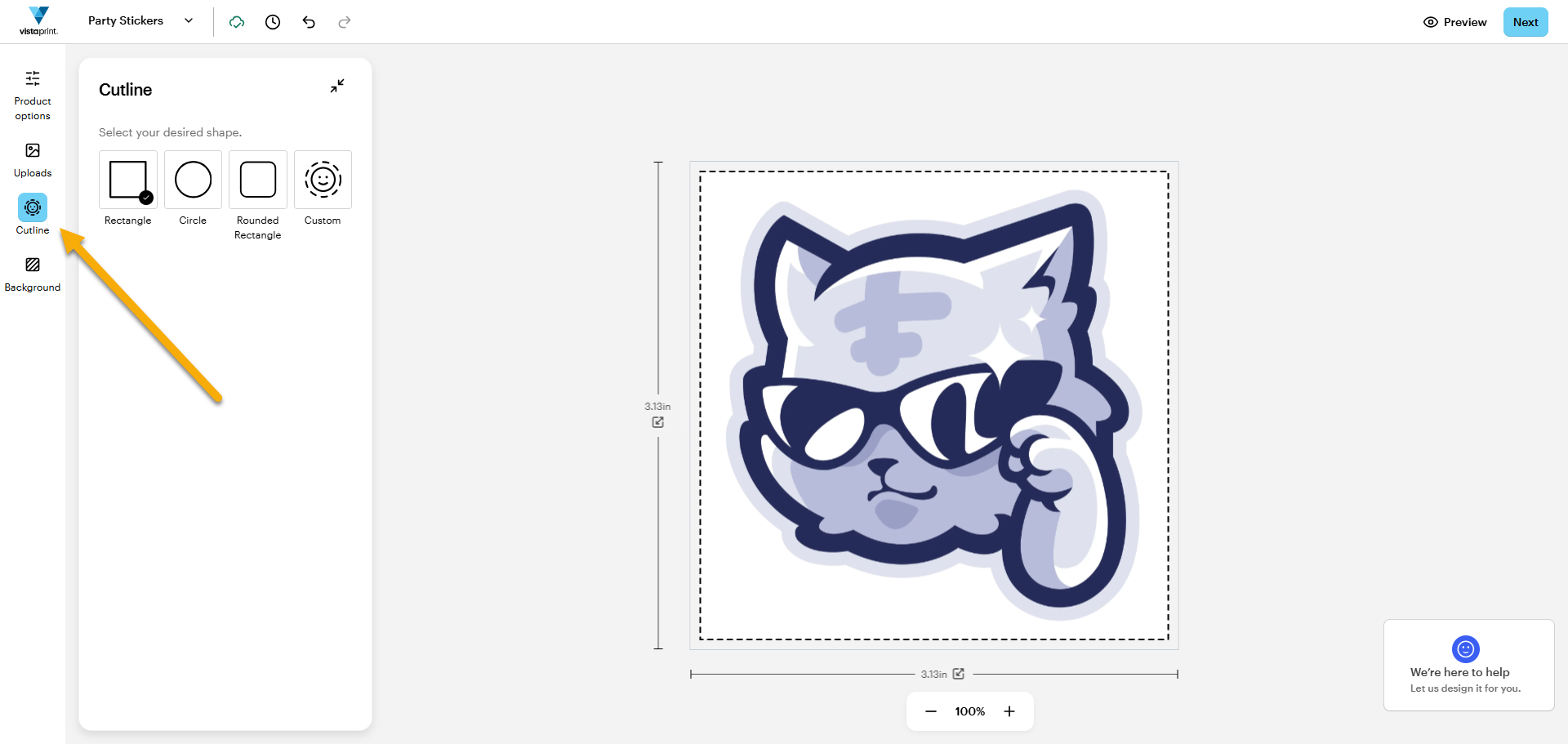
    A sticker design in the VistaPrint Studio with an arrow pointing to the Custom cutline. The sticker now has a cutline adjusted to the shape of the image.

Can't find the Cutline button?

Return to the product page of your sticker and select Custom under Shapes. Once you begin designing your sticker, the Cutline button will appear in the toolbar on the left.
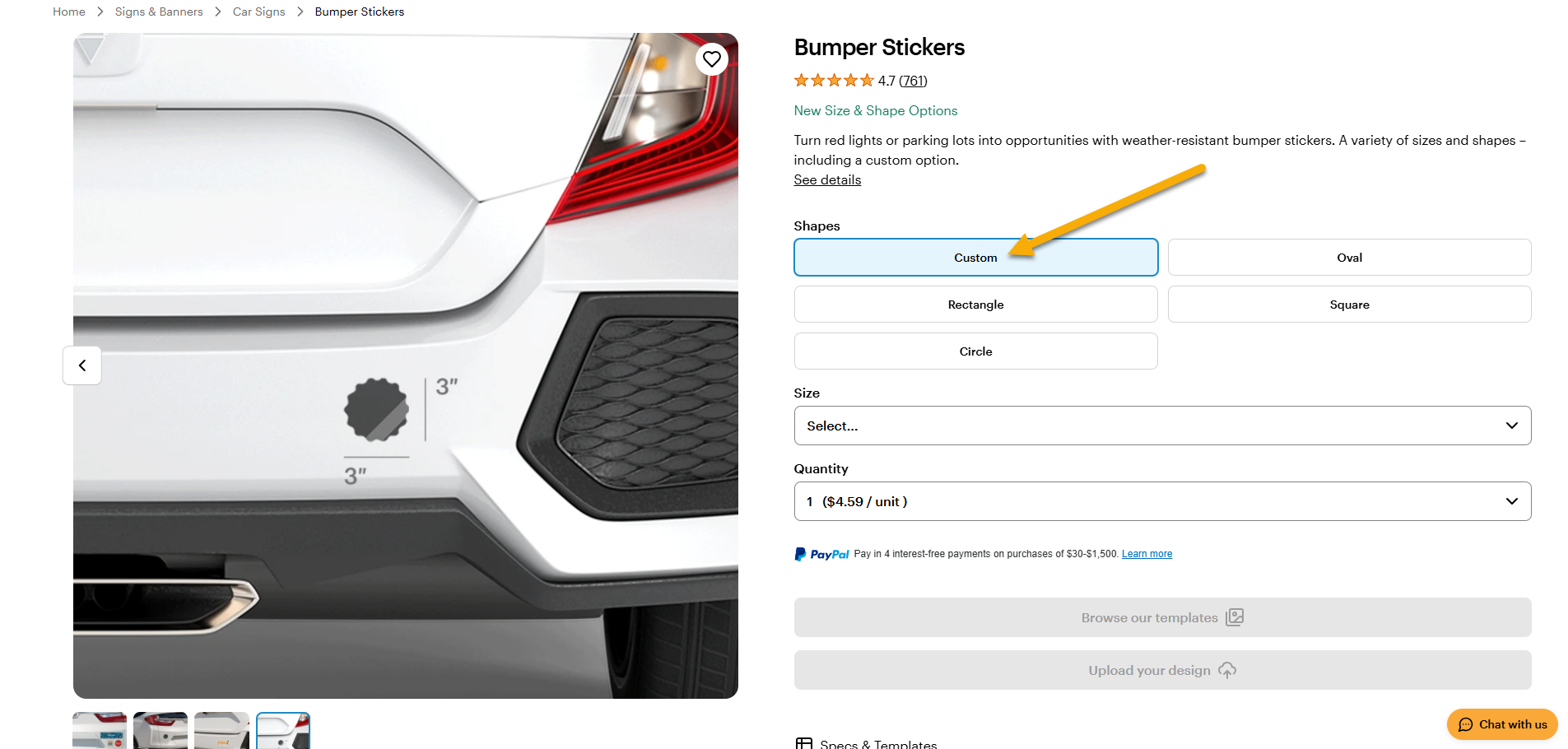
The product page of bumper stickers with an arrow pointing to Custom which allows you to adjust the cutline for the sticker.

Was this article helpful?
Learn how we use your feedback

Connect live with Customer Support

Need help?

Contact Us