

The 3D preview updates automatically as you add text, images or colours.
How to use the 3D preview controls
1
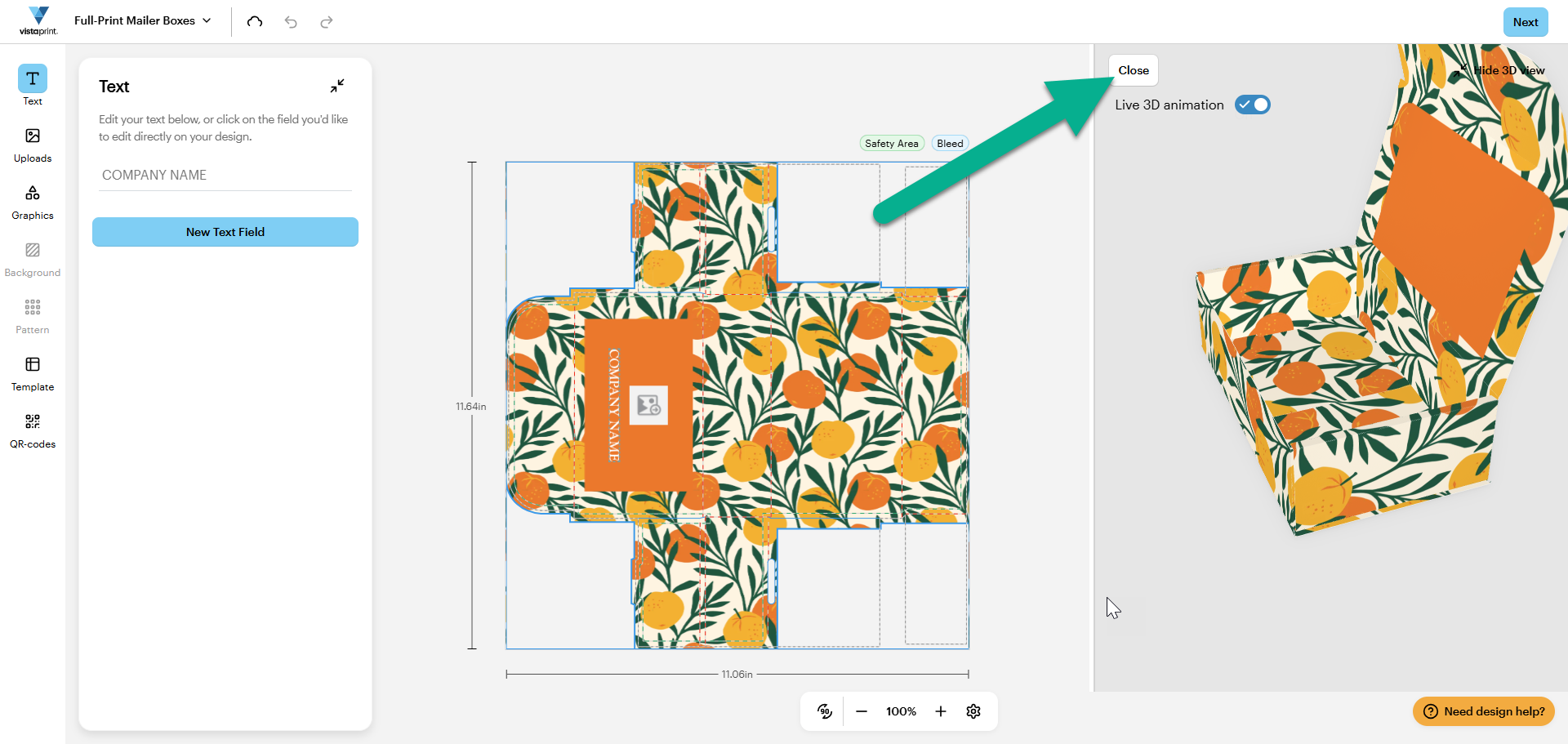
Open or close the box
Use Open/Close button at the top of the preview panel to switch between the assembled box and the view of the box with the lid open. This is helpful for confirming the placement of designs on the inside.
2
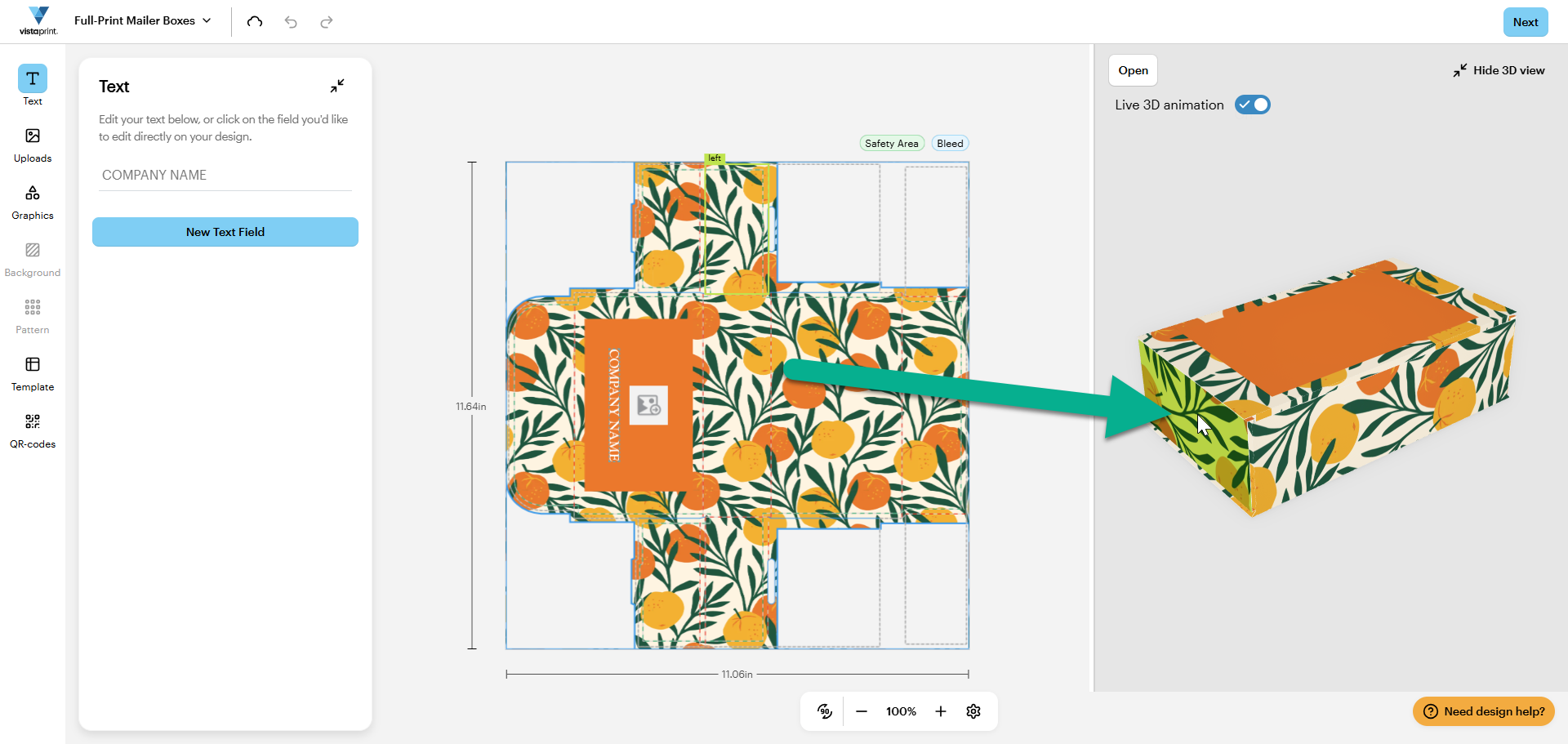
Rotate the view
Select and hold your cursor on the 3D model, then drag it in any direction to rotate the box. This allows you to check the bottom, sides and back of your packaging.
3
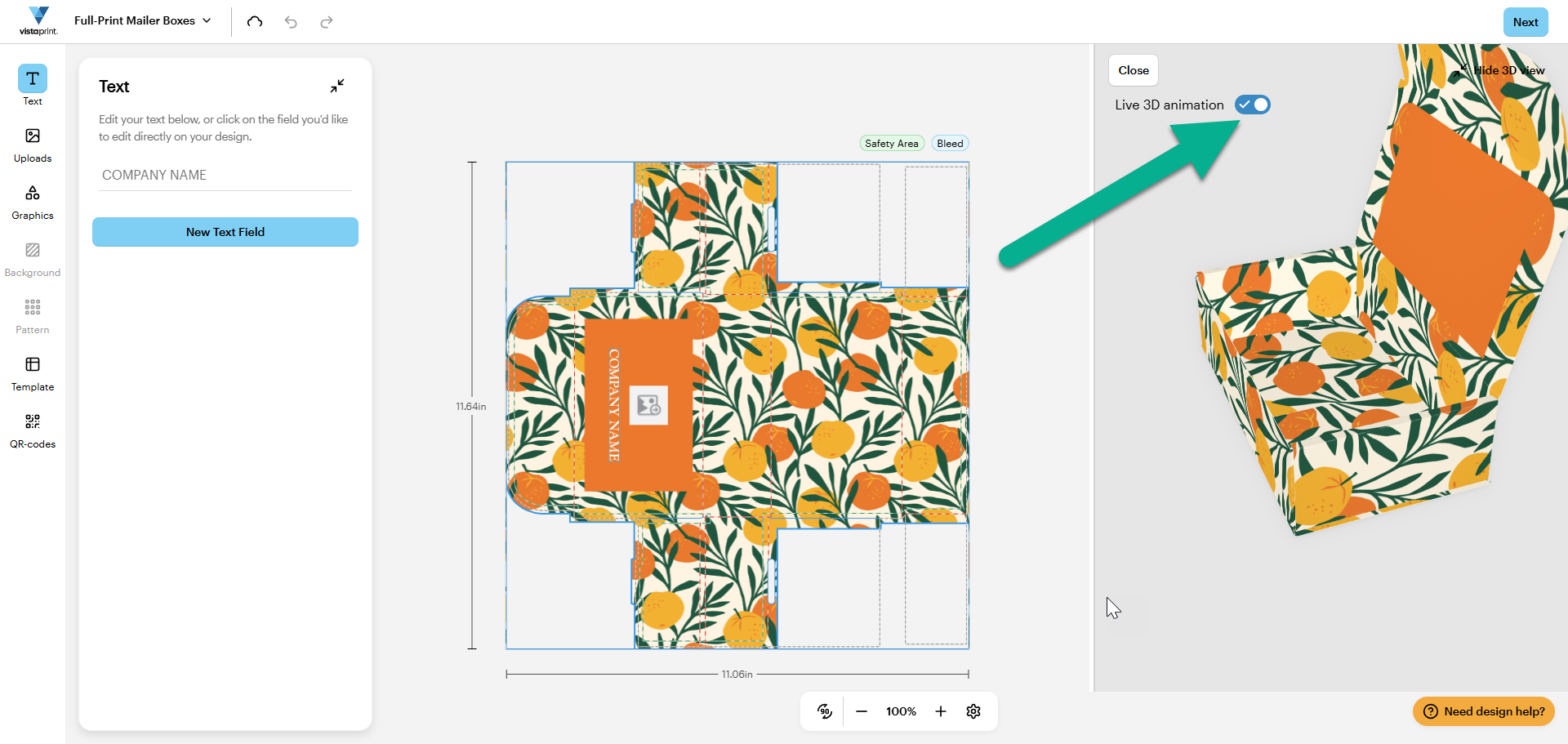
Toggle live animation
Switch the Live 3D animation toggle on to keep the box in motion, or turn it off to keep the box in a fixed position while you work on specific details.
If you need to focus entirely on your flat layout, you can select Hide 3D view in the top right corner of the preview panel to collapse it.

