

Steps to disconnect your social media login
If you previously used a social media account to sign in to VistaPrint, you can disconnect it at any time to switch to a standard email and password sign-in.
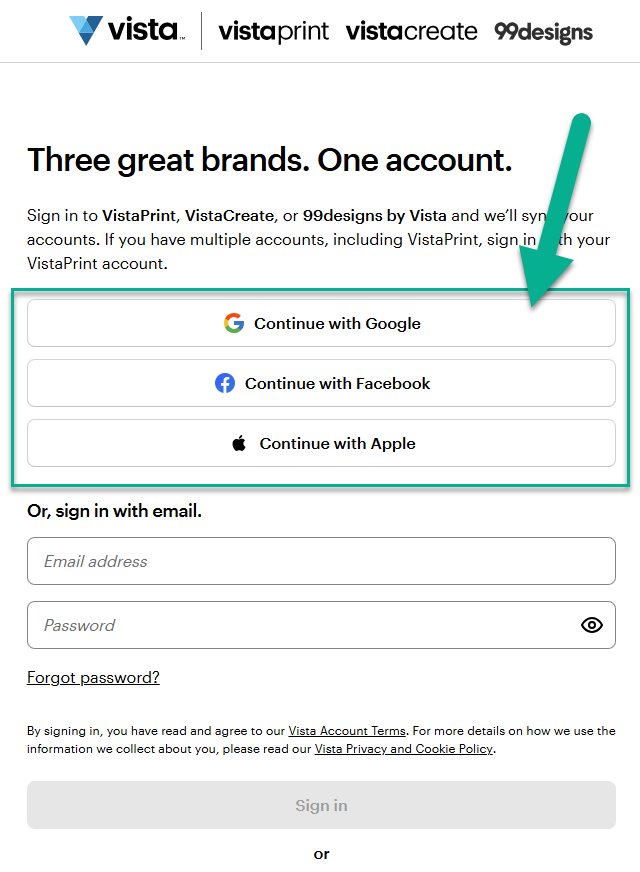
Sign in to your account
Sign in to your VistaPrint account using the social media option (such as Google or Facebook) you currently use.
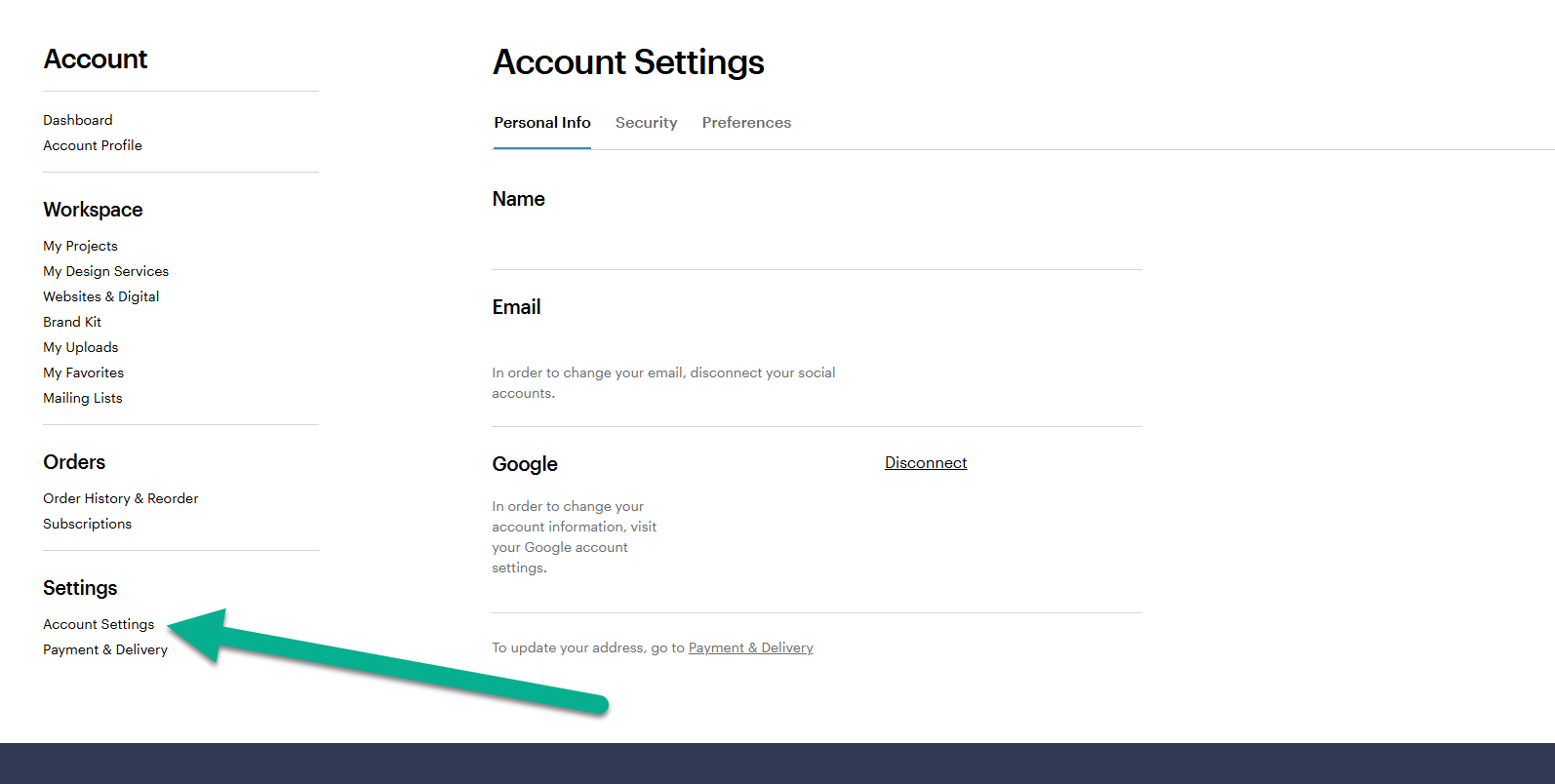
Access your account settings
Go to My Account and select Account Settings from the menu.
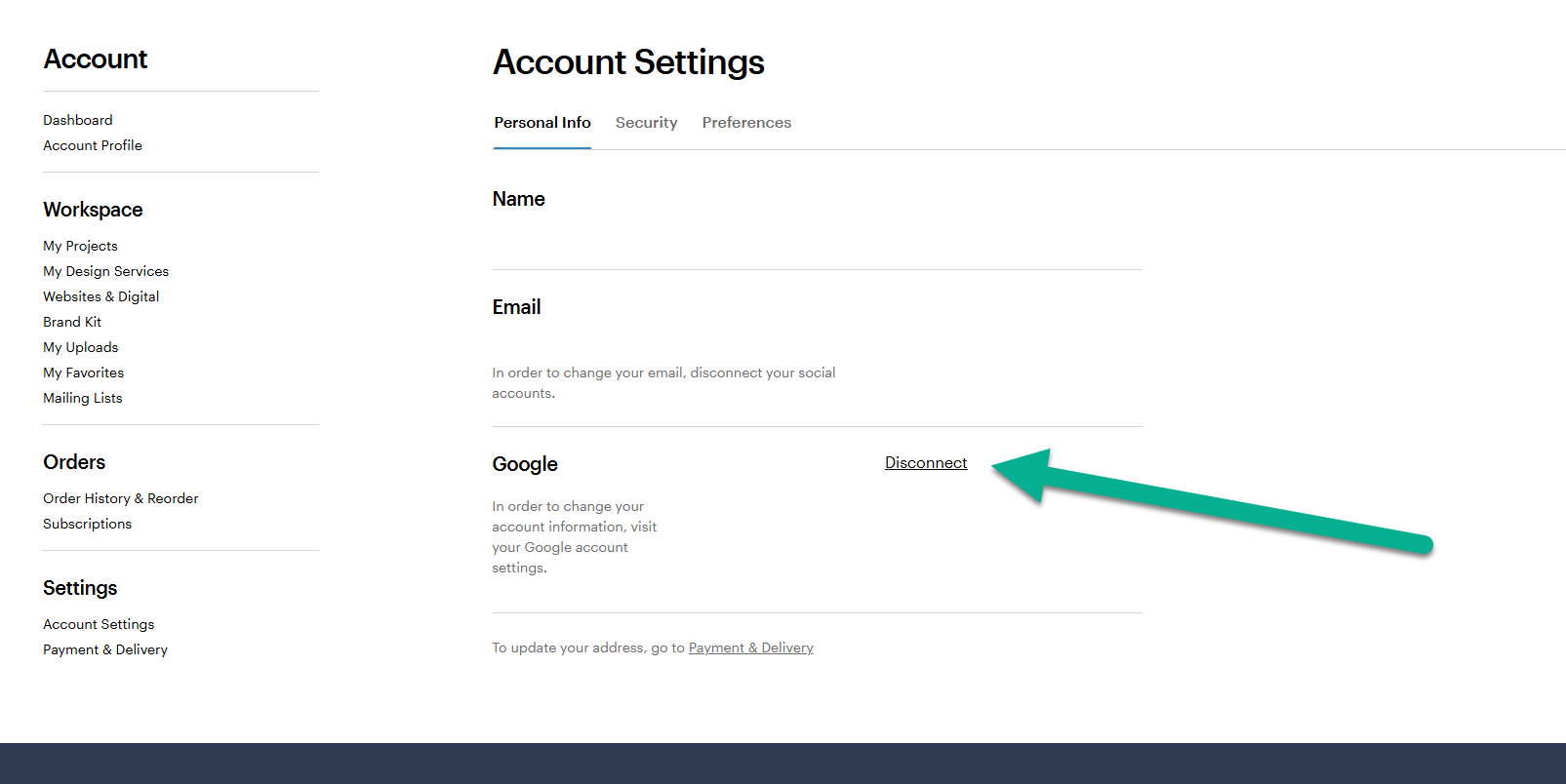
Disconnect the social provider
In the social login section select Disconnect next to the platform.
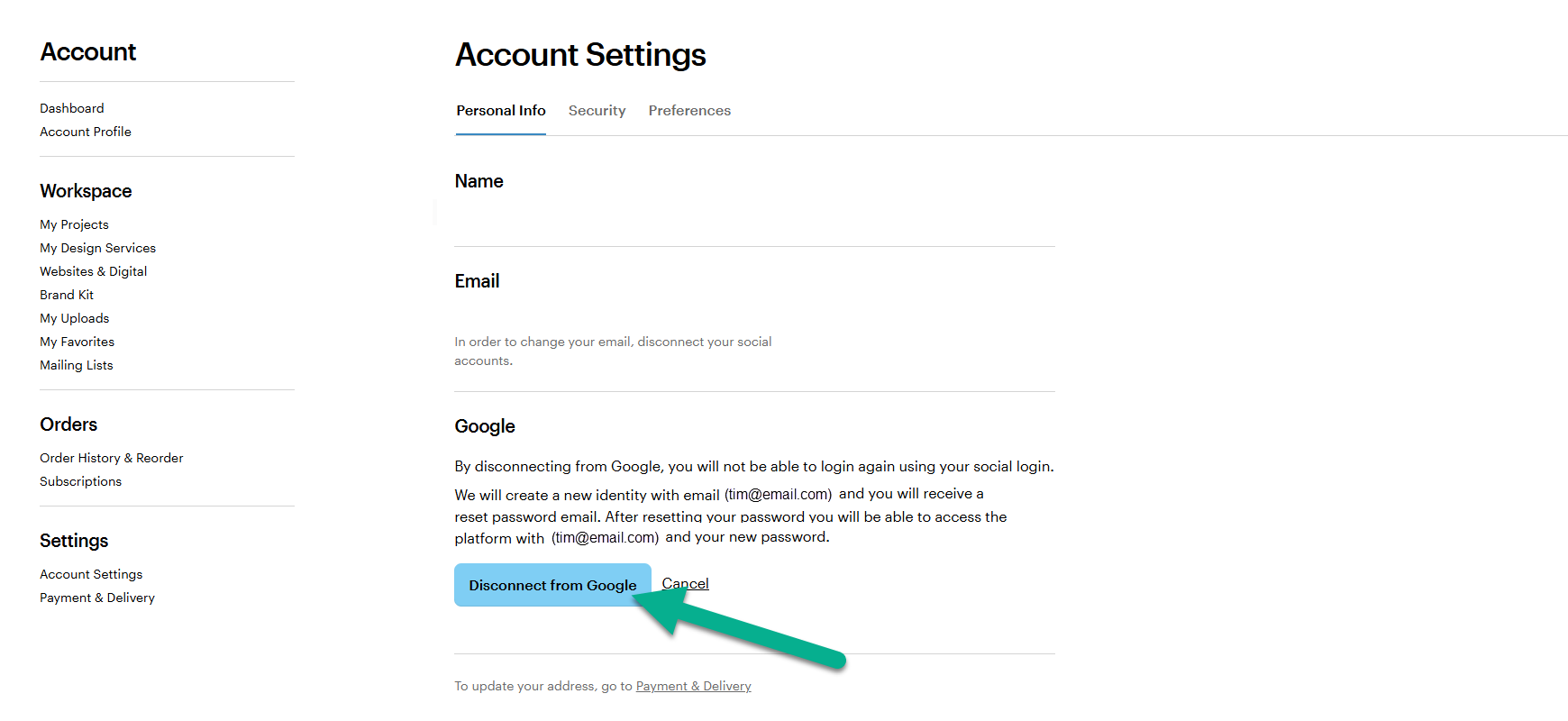
Confirm the disconnection
Confirm that you want to disconnect your social login by selecting ‘Disconnect from [social platform]’ (for example, Disconnect from Google or Disconnect from Facebook).
Create a new password
Check your email inbox for an email from VistaPrint. Select Update password in the email to create a new unique password for your account.
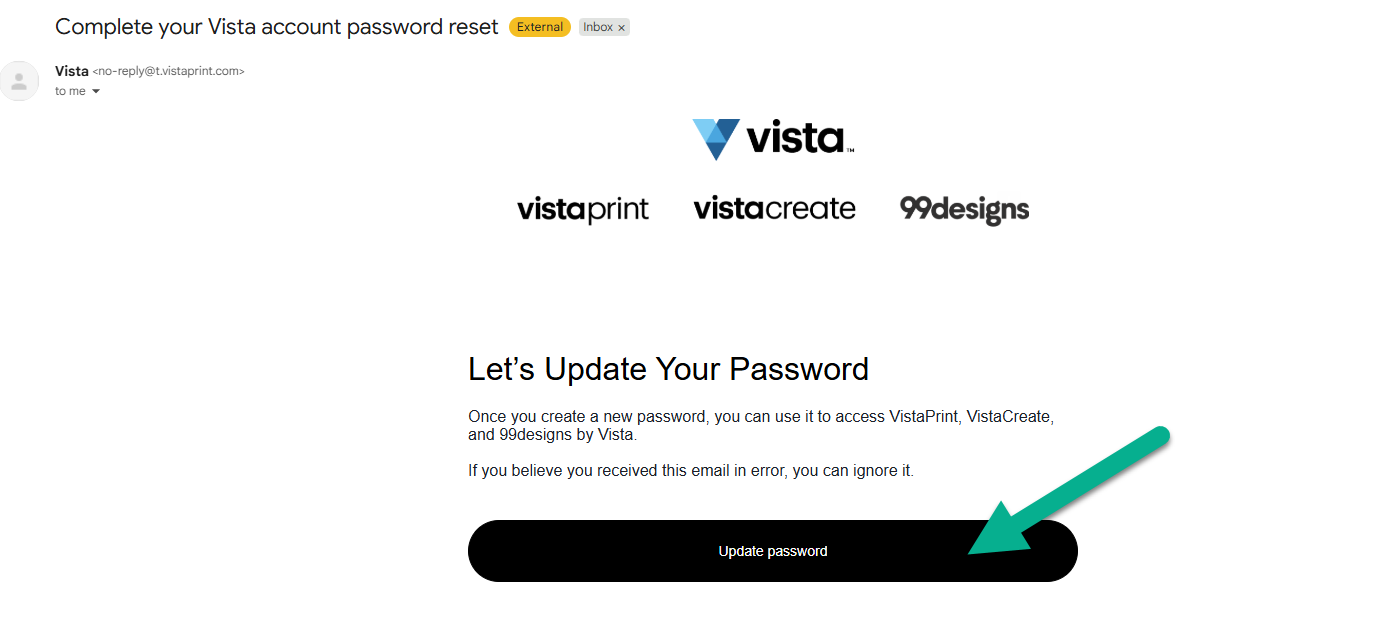
Once you have created your new password, you can sign in using your email address. Your social media login will no longer work for this account.

