Use a photo as a background
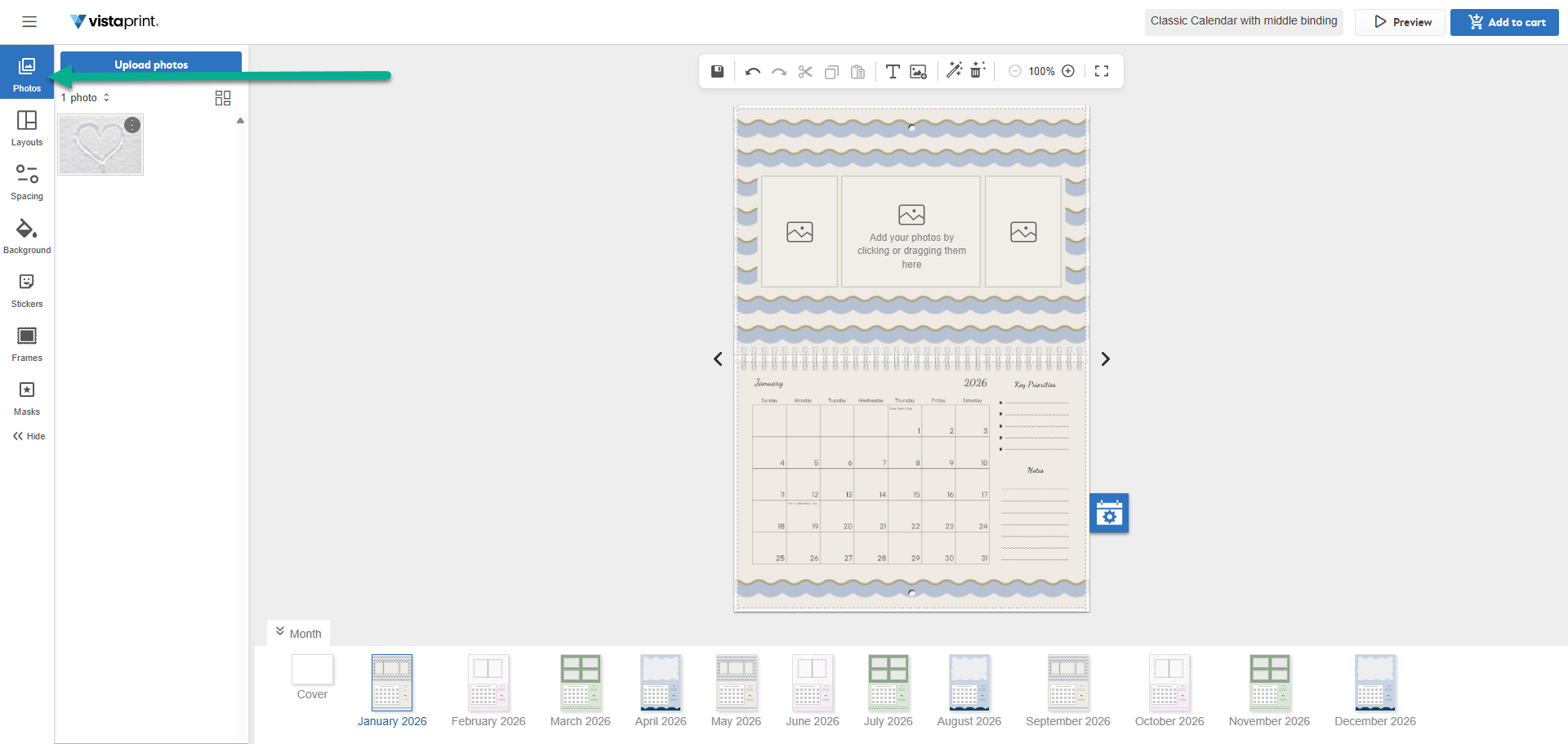
Select the Photos tab
In the gallery of your uploads, find the image you want to use or upload a new one.
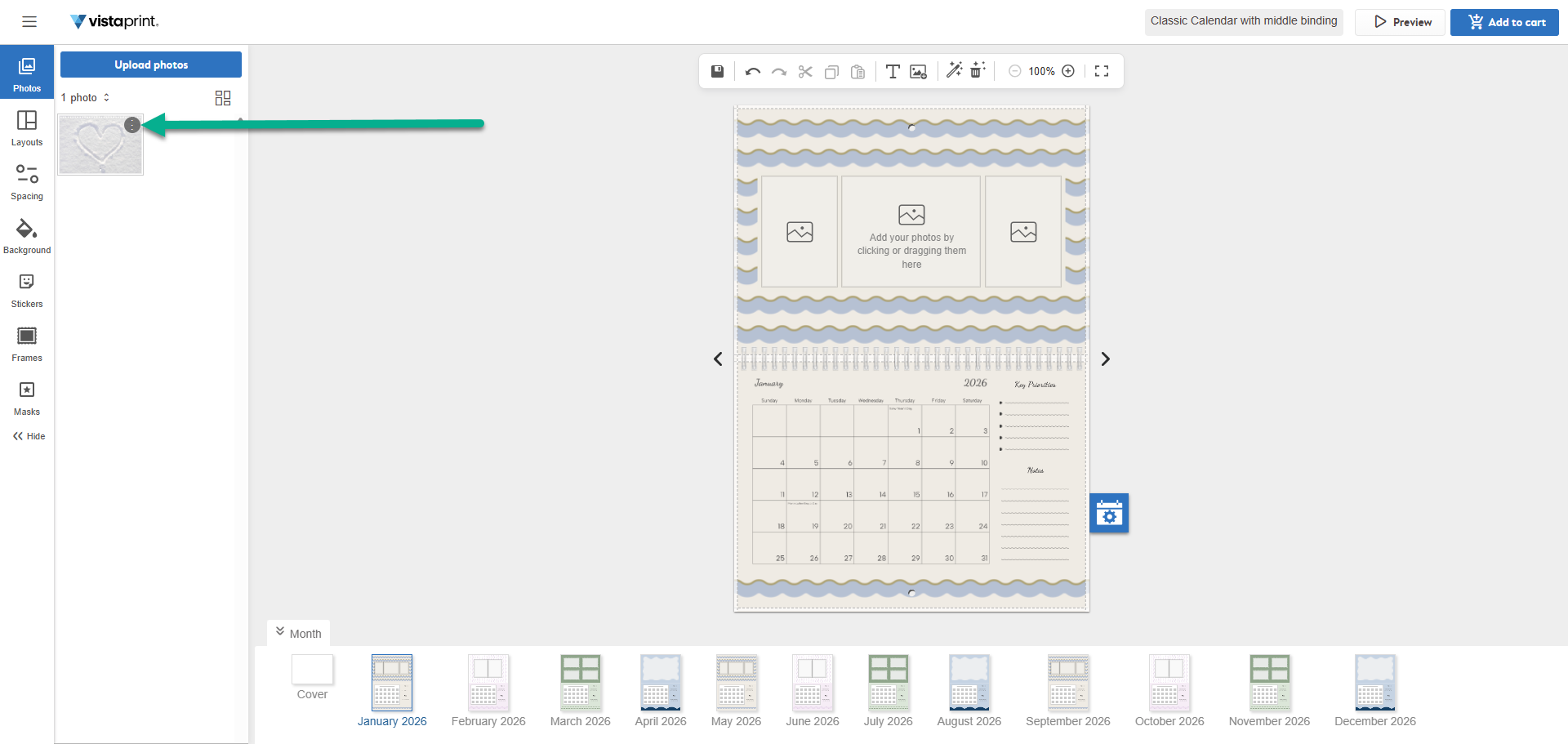
Open the options menu for the photo
Select the three dots on the thumbnail of the photo you want to use to open the menu for the photo.
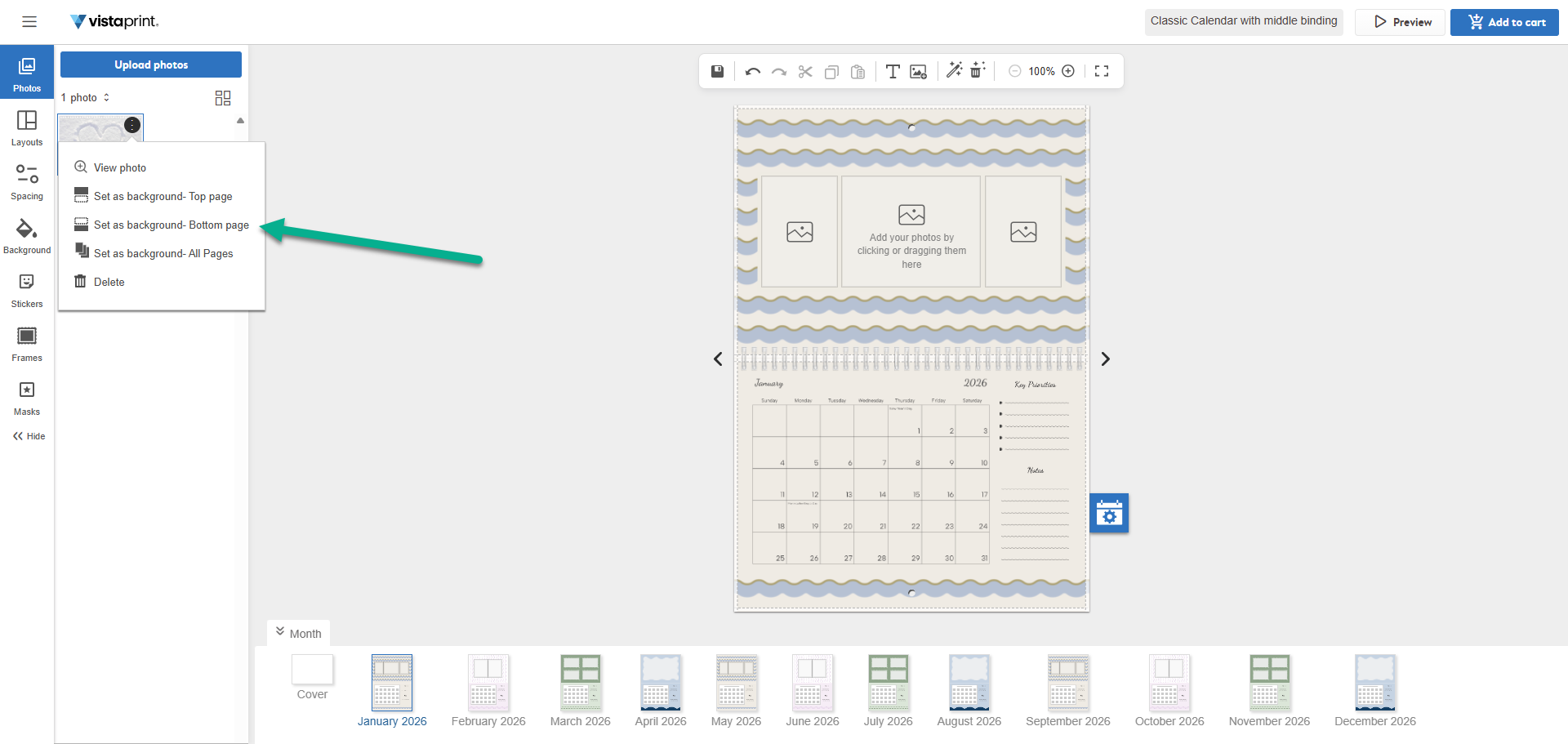
Apply the photo as a background
Select the background you want and confirm which sections of the calendar it should appear on. The background can be added to the top page of the month you're currently designing, the bottom page or all pages in the calendar.
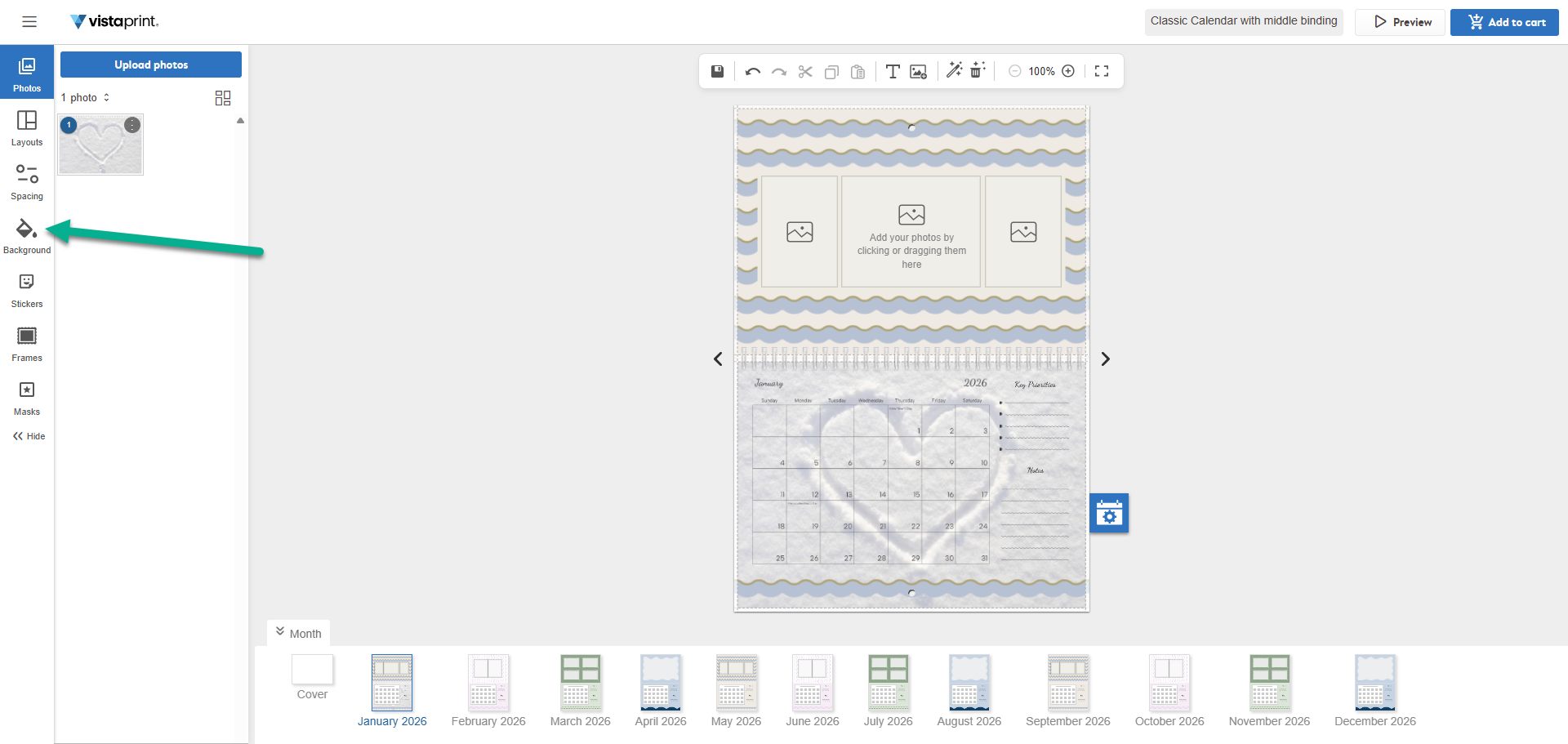
Use a studio background
Select the Background tab
Browse our library of designer backgrounds.
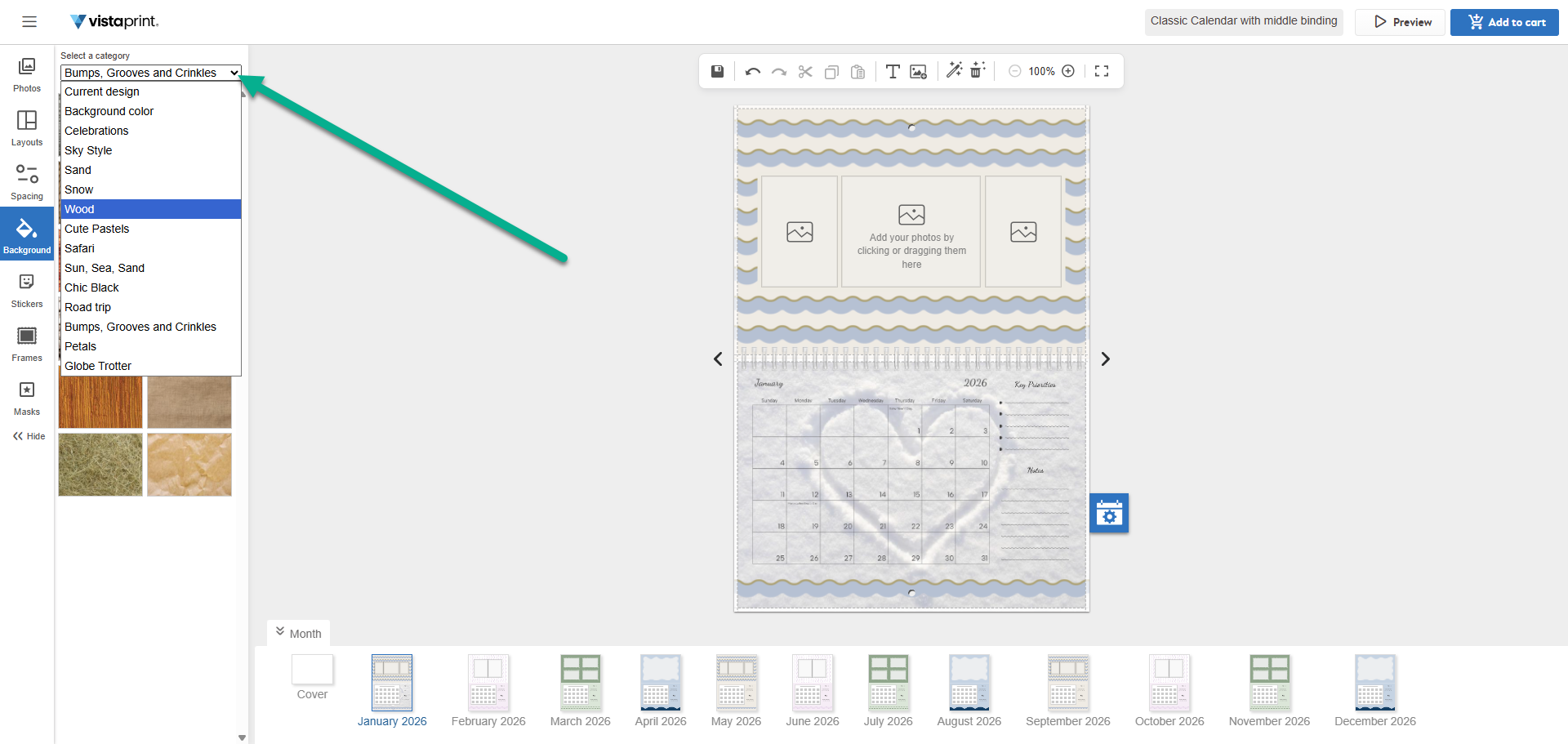
Choose a category
Use the Category drop-down menu to find styles such as wood, sky style or seasonal themes.
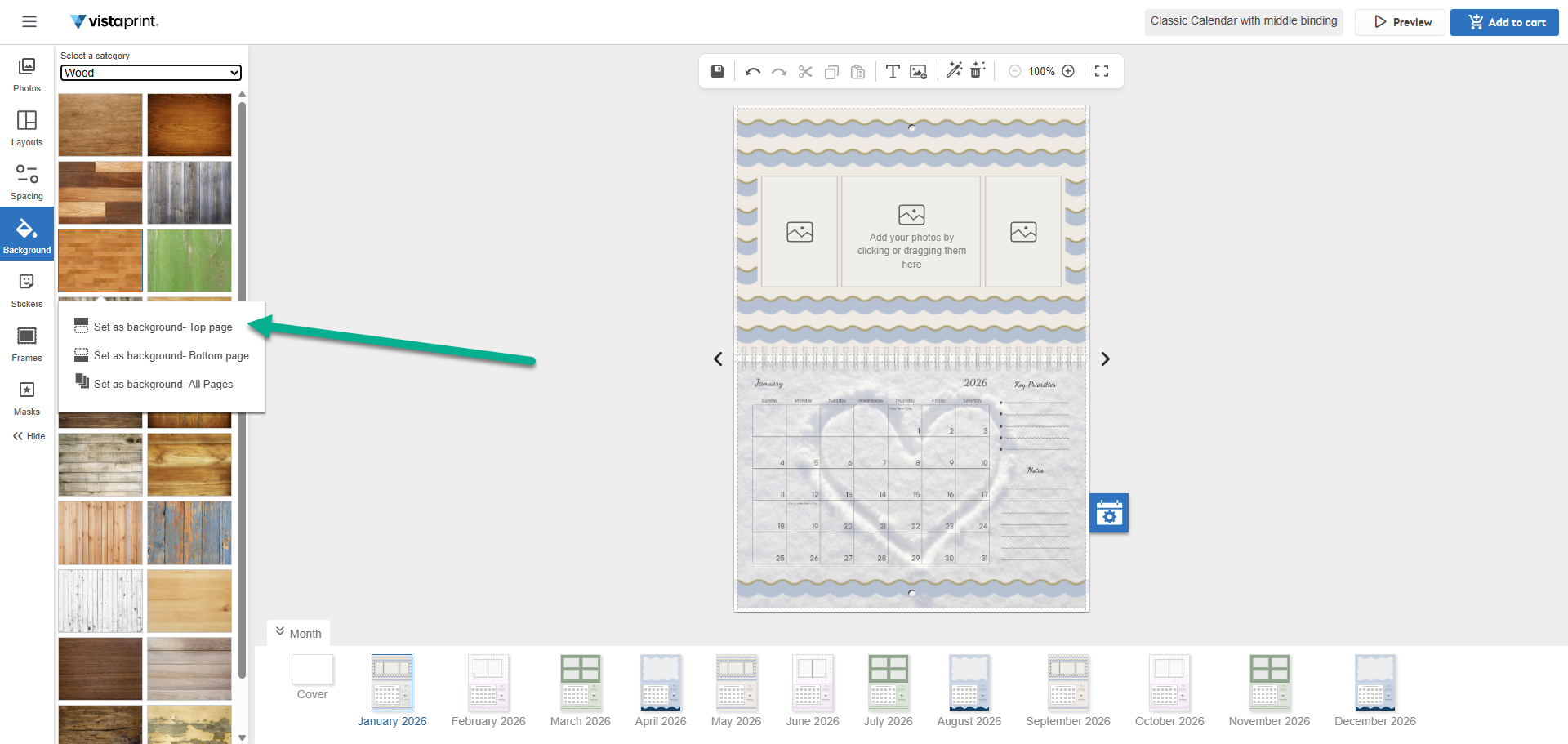
Select a background to apply
Select the background you want and confirm which sections of the calendar it should appear on. The background can be added to the top page of the month you're currently designing, the bottom page or all pages in the calendar.