

To add your own events to your calendar, follow the steps below:
1
Open the calendar settings
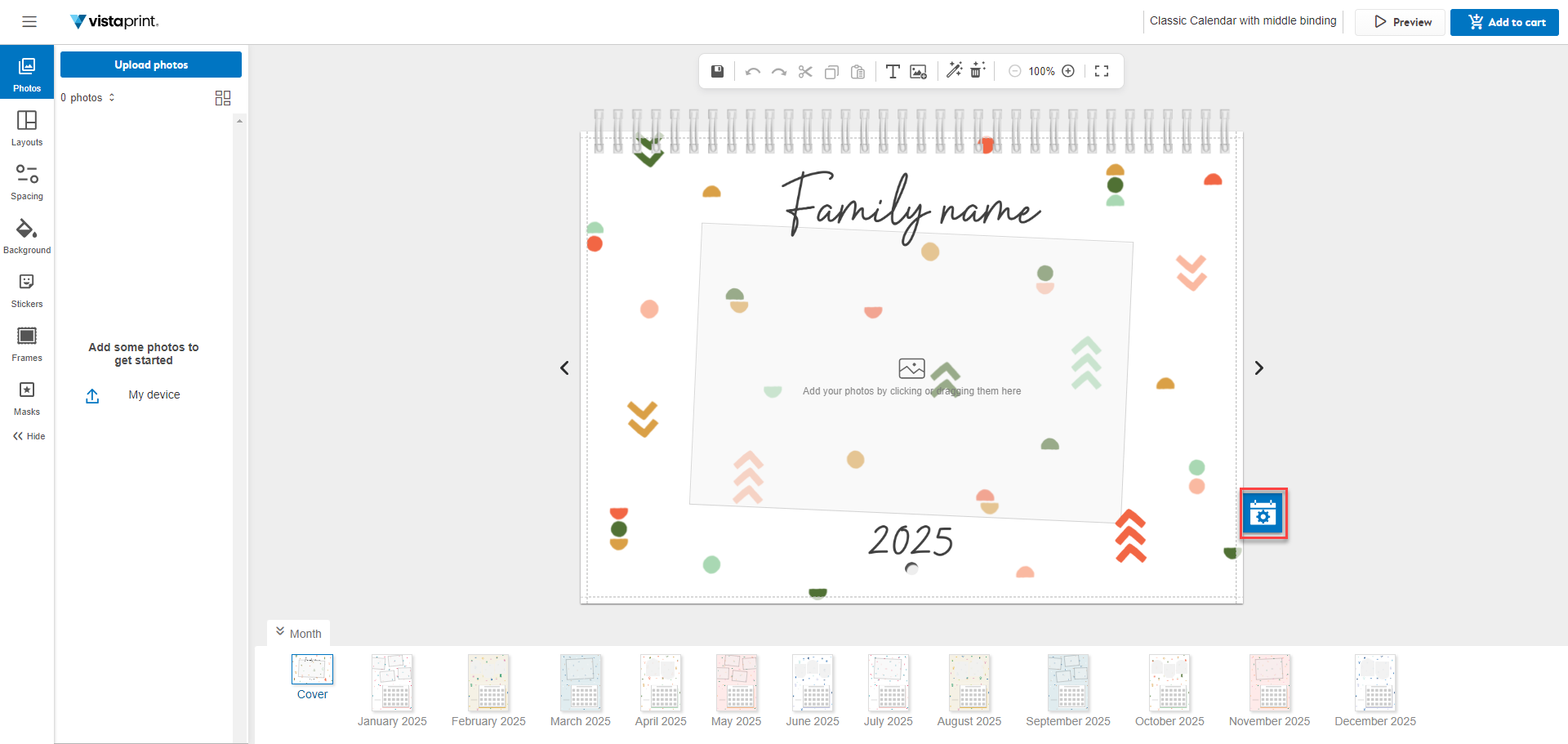
Select the calendar icon next to your calendar to open the custom dates menu.
2
Add custom events
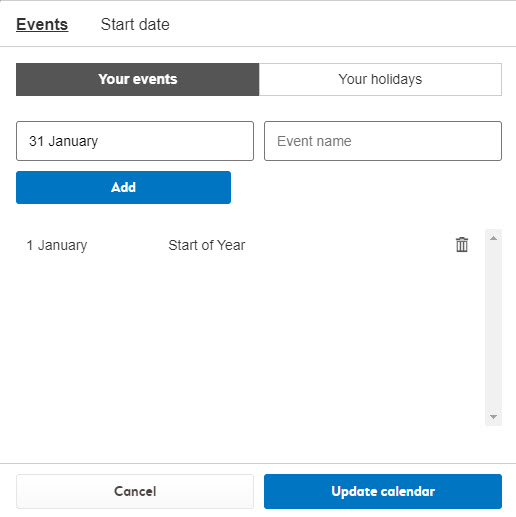
In the Events tab, give each event a name and select a date from the data selection drop-down. To add a new event, select Add. To remove an event, use the Trash button next to the event.
3
Choose which holidays appear
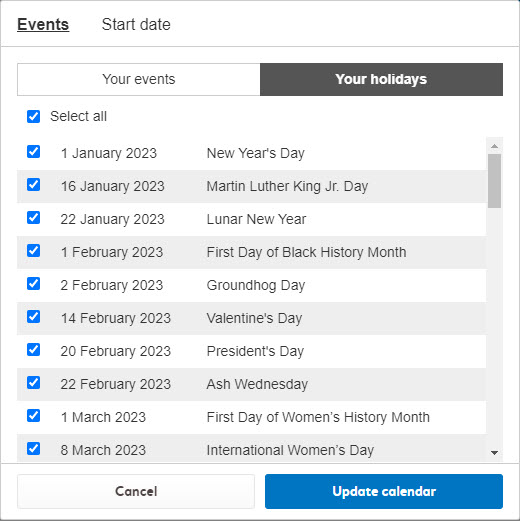
In the Your holidays section, review the default holidays for your country and deselect any that you don’t want to include in your calendar.
4
Save your changes
Select Update calendar to save your changes.

