Some of our calendar templates already have pre-defined layouts for each page. Others just offer you a blank page that you can edit as you choose. Either way, you can select your own layout for each page to fit the amount of photos you want to add.
Selecting a layout
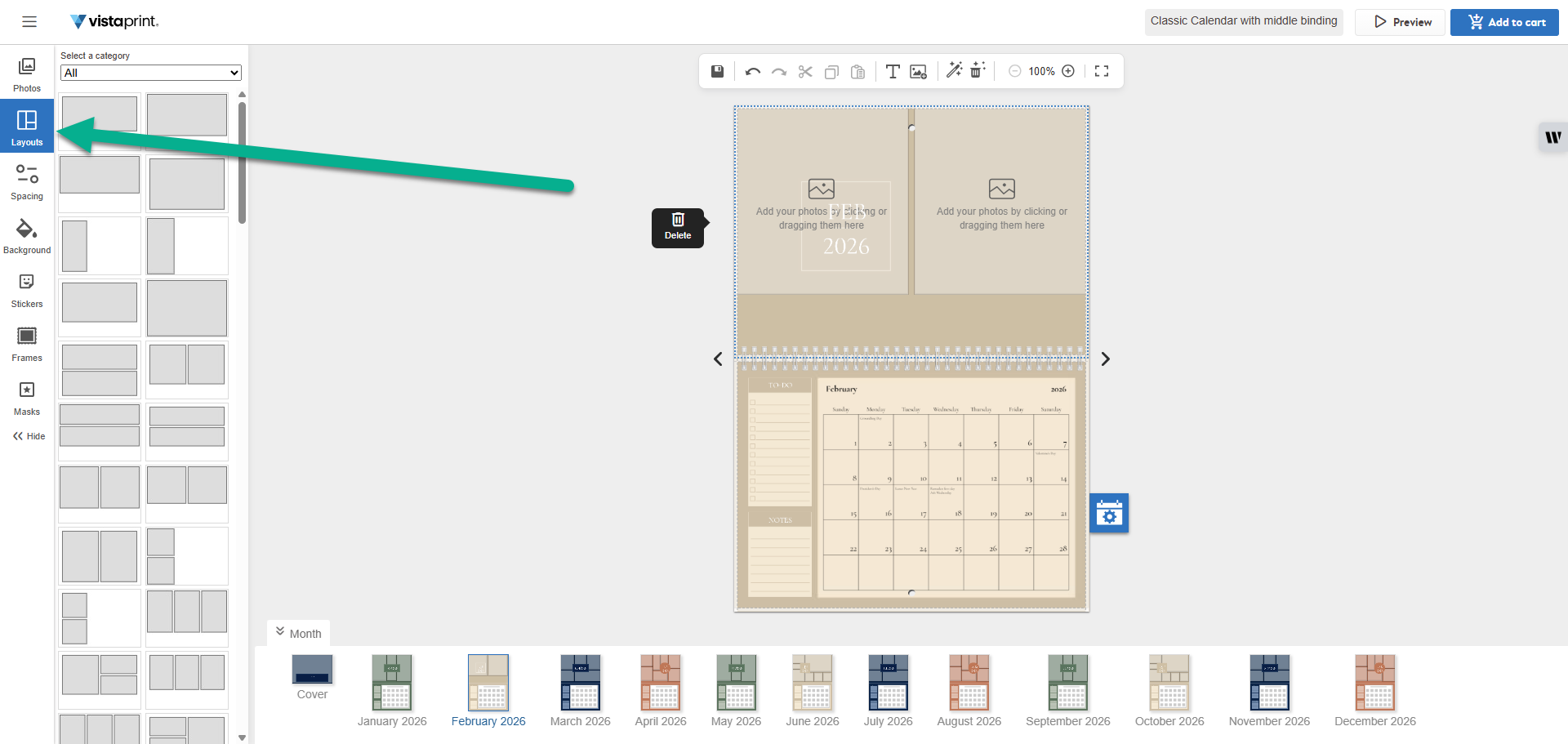
Select the Layouts tab in the menu.
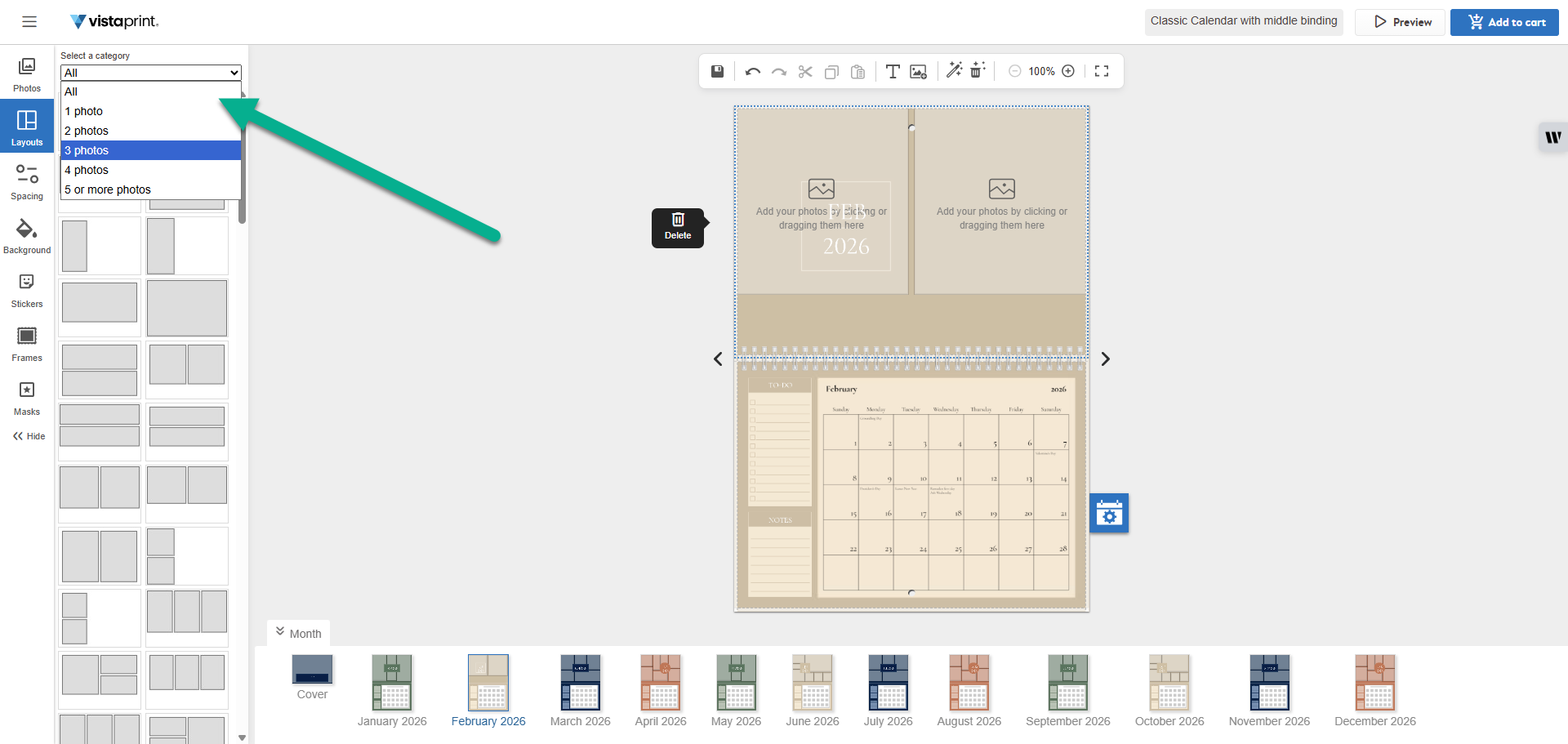
From the drop down ‘Select a category’ select the amount of images you want to add.
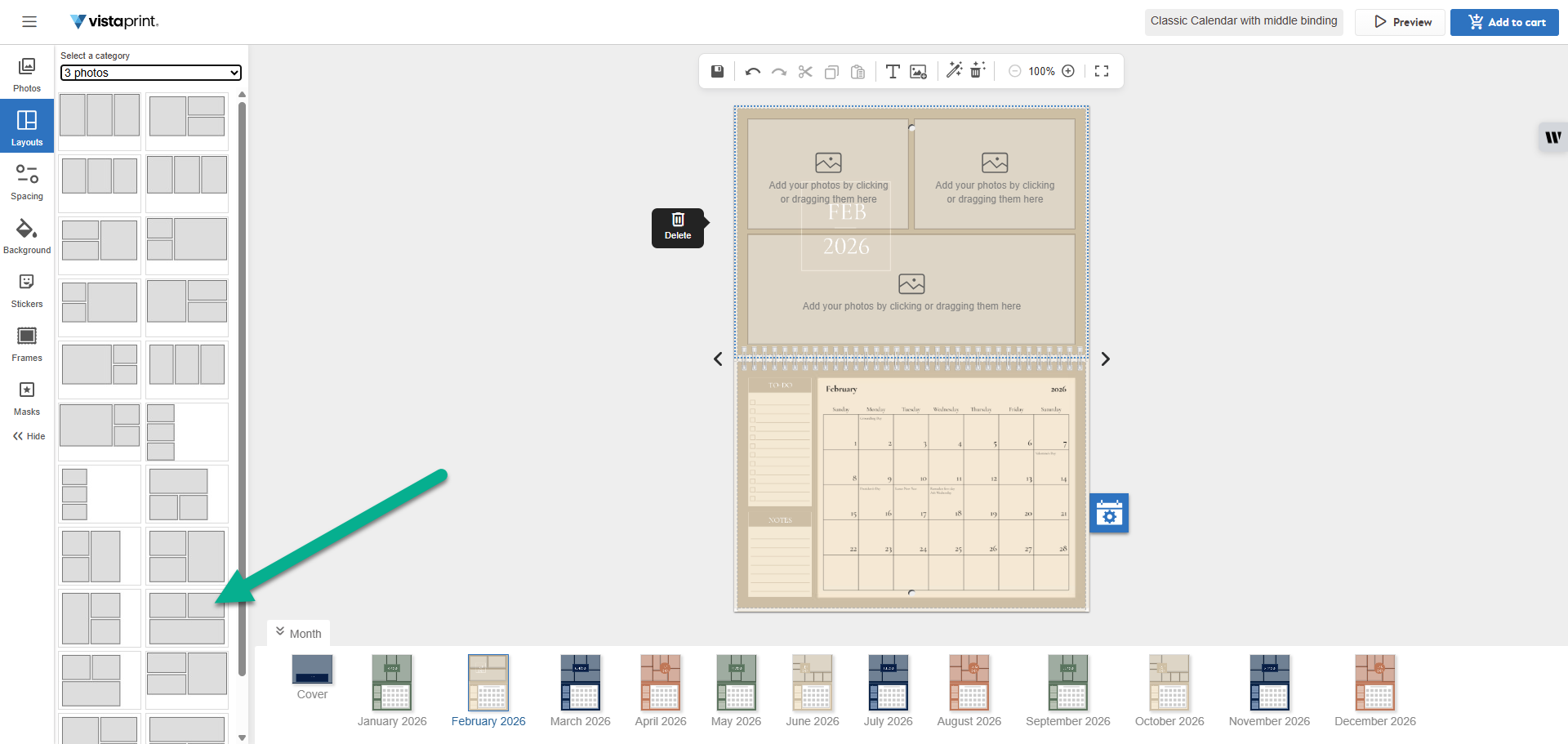
Choose a layout from the gallery. When you select a layout, your design updates immediately.
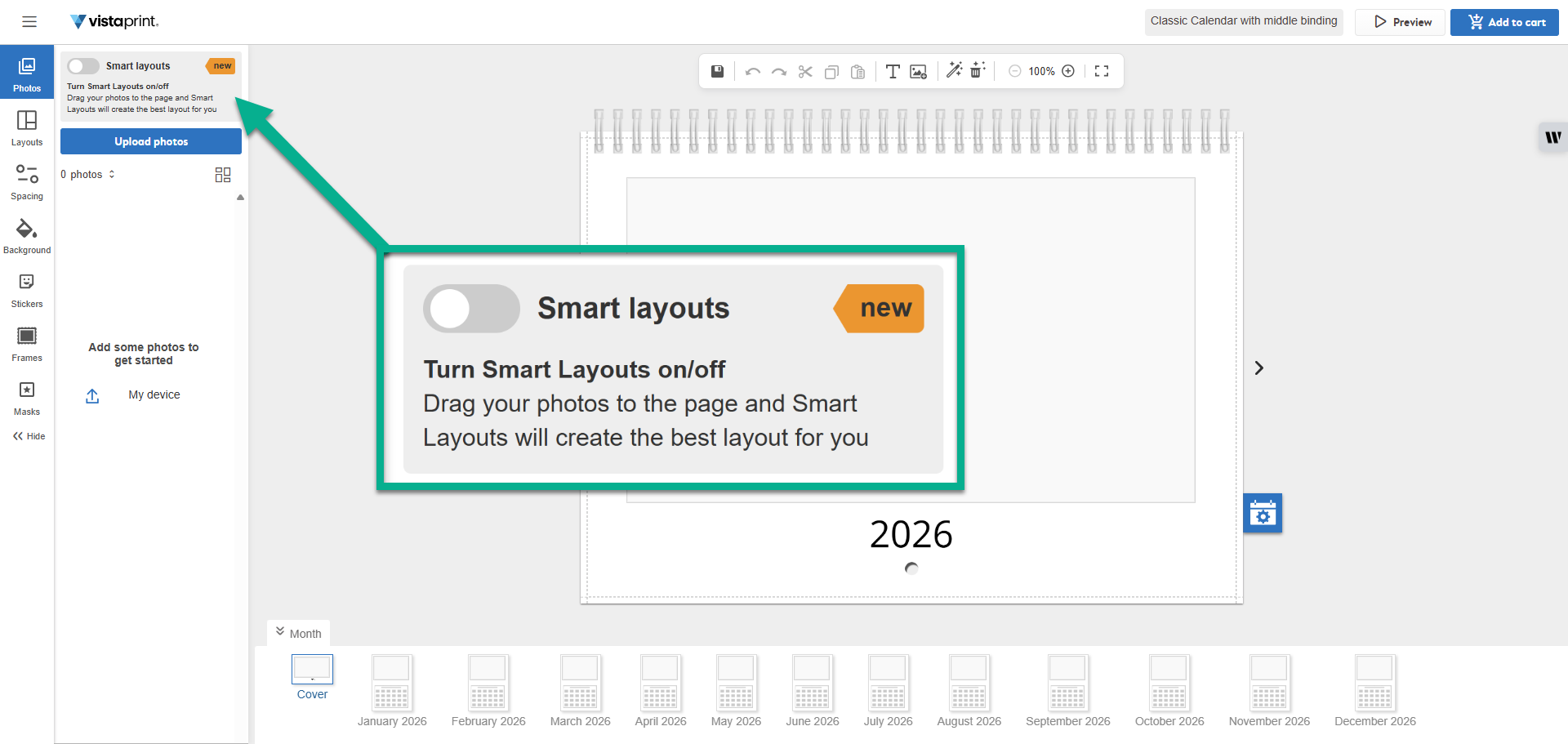
Smart Layouts
Some of our templates allow you to use our Smart layouts feature. With this feature, you can simply drag pictures to the page and a layout will be automatically created for you. As you add or remove pictures, the layout will automatically update to fit your pictures.
To use the Smart layouts feature, toggle the Smart layouts button on in the layouts tab. Note that not all templates have this feature.
Adjusting the spacing around pictures
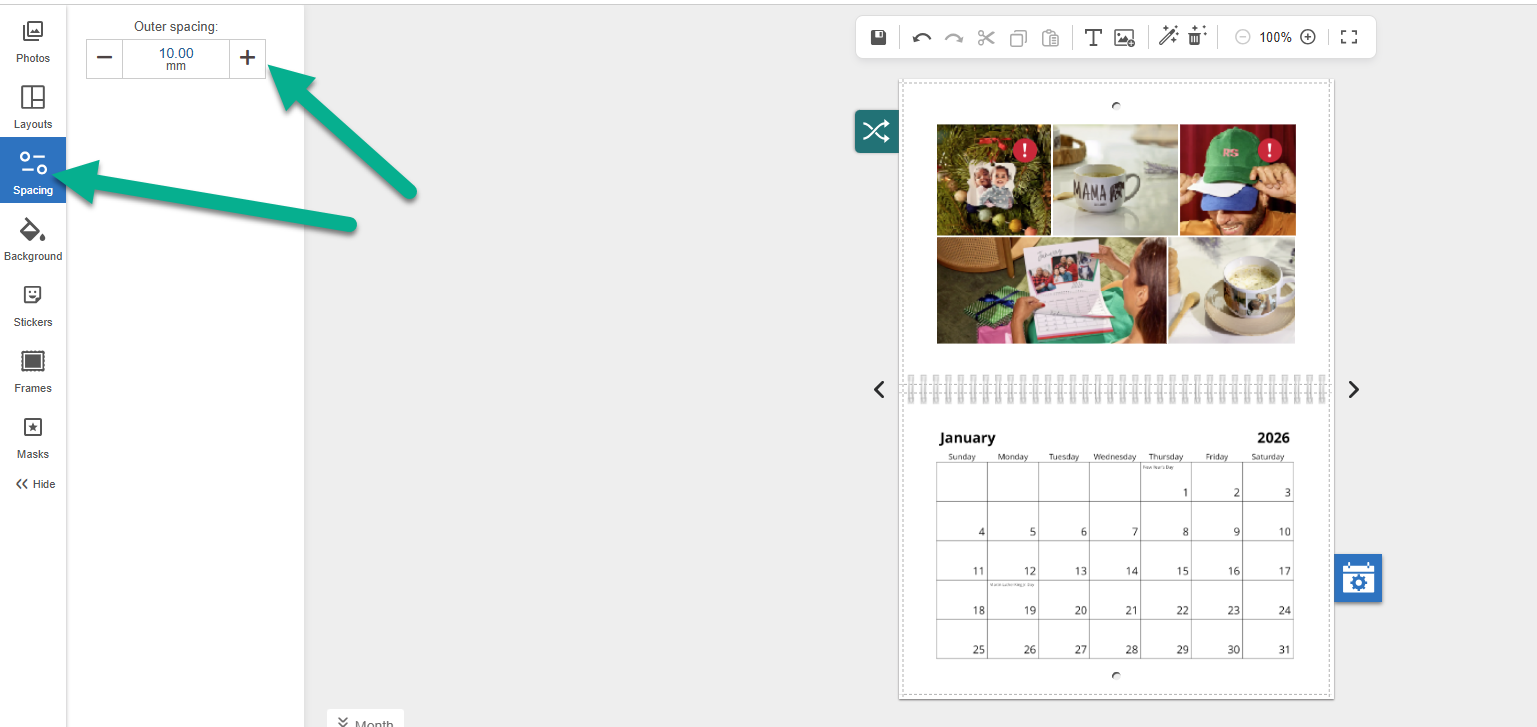
Select the Spacing tab in the menu.
Use the + and - buttons to increase or decrease the outer spacing around your images.
.