
How do I add a background colour to my design?
Last updated 16 June 2026.
Guide
You can add a background colour by placing a shape with your chosen colour behind your design.

Steps to add a background colour

1

Select Background

In the design studio, select Background from the menu on the left. 
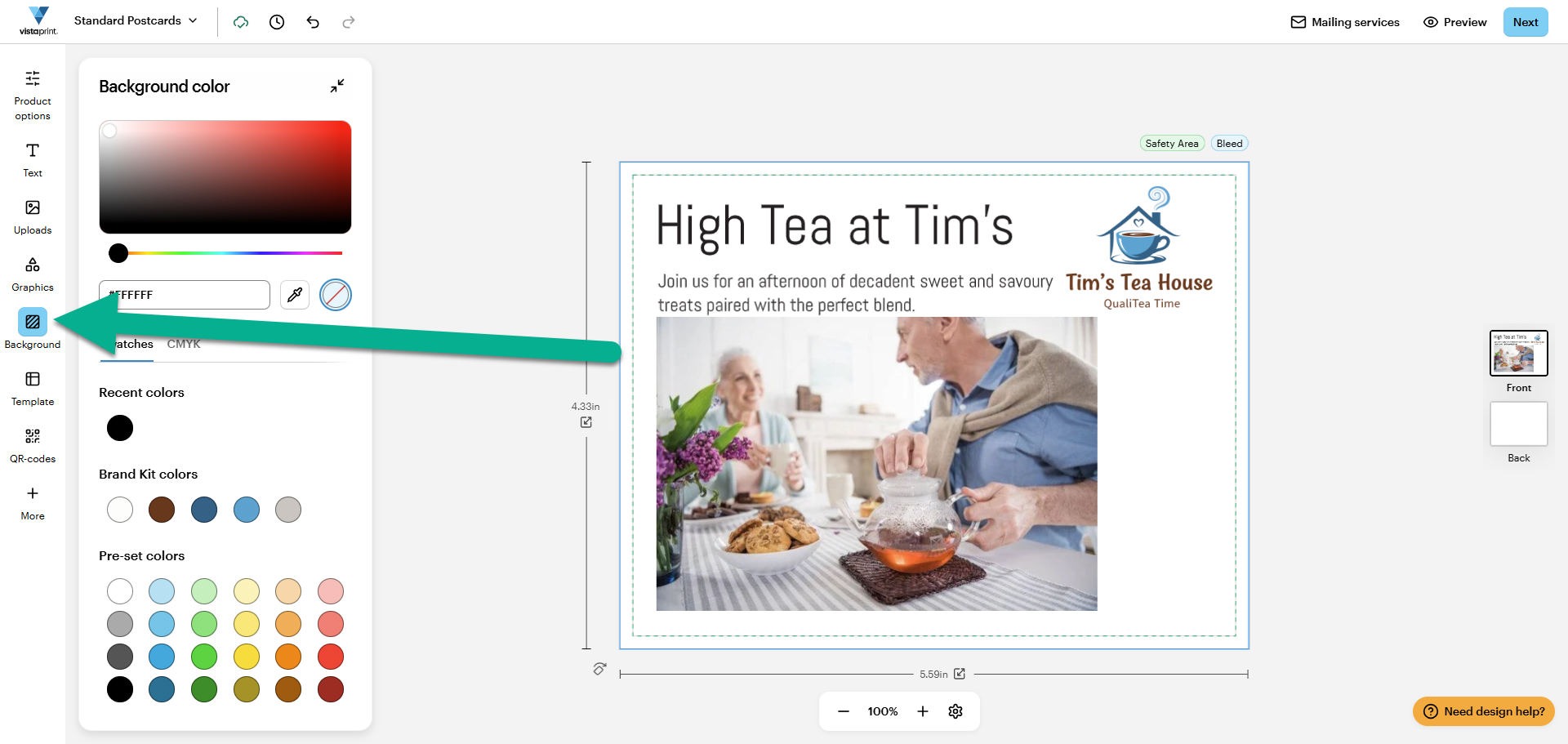
An arrow points to the Background icon in the VistaPrint studio side menu.
2

Choose a colour

Choose a colour from the Background colour menu. You can:

  • Pick a colour from the palette

  • Use the eyedropper tool

  • Select a colour from our swatches or your Brand Kit

  • Enter a custom HEX code or a specific CMYK code by selecting the CMYK tab.
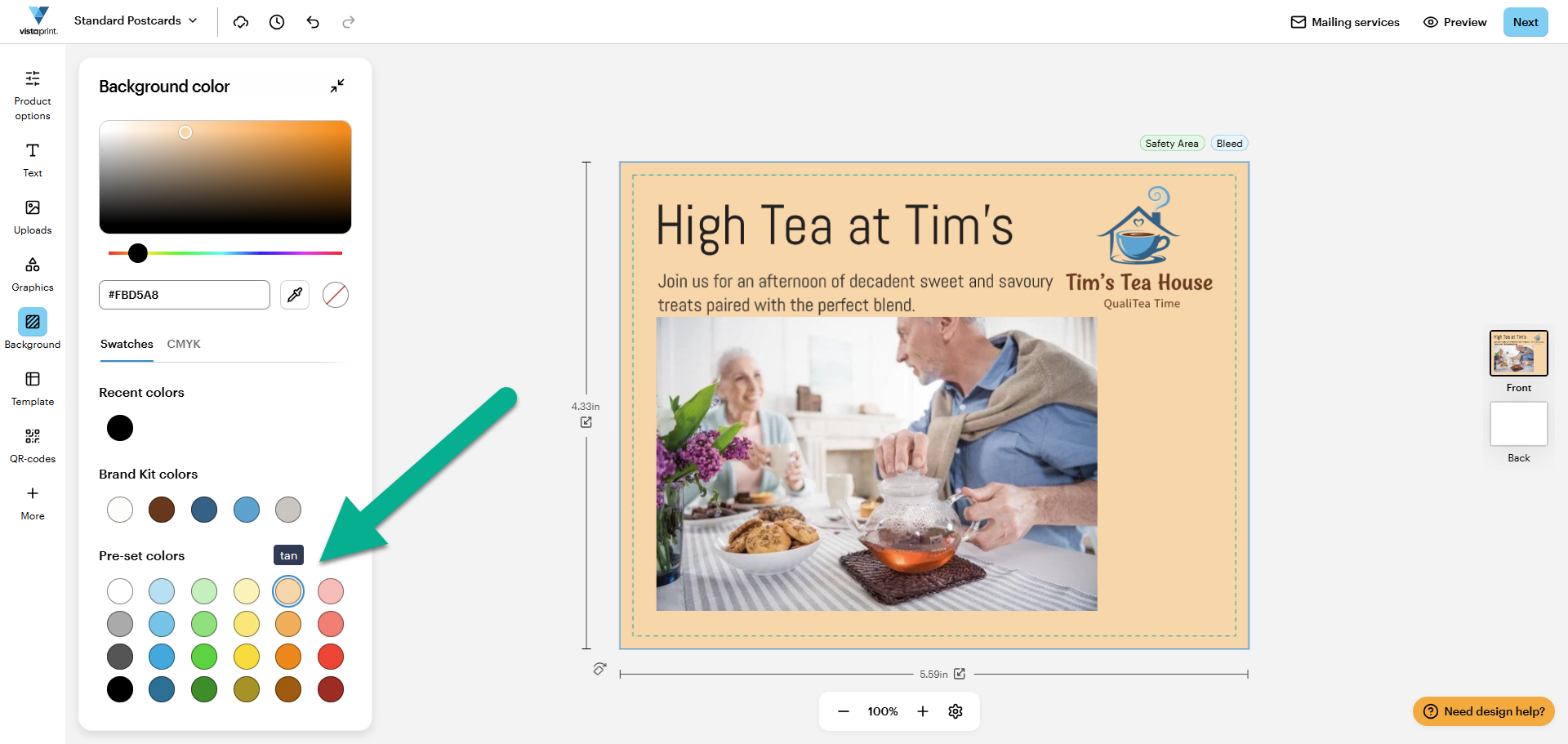
An arrow points to a tan circle within the Pre-set colours section, changing the VistaPrint postcard background from white to tan.

Was this article helpful?
Learn how we use your feedback

Connect live with Customer Support

Need help?

Contact Us
