Why this happens
Your order may ship in separate packages. This can happen if your order contains multiple products, large quantities, or if items are produced or delivered at different speeds. Each package is shipped as soon as it’s ready.
What to do if an item is missing
If part of your order hasn’t arrived, follow these steps to find out what went wrong and report the issue through our self-service support form:
Check the Package
Sometimes, items move around during transit. Carefully examine the entire box or envelope, including under any wrapping or protective materials, to ensure you haven't missed anything.
If there’s a packing slip included it may say if an item is shipping separately.
Check your order history
Go to My Account and select Order History & Reorder. Here you'll find an overview of your orders. In the order details, you can check if the order is shipped in multiple packages.
Report the issue via our Help Centre
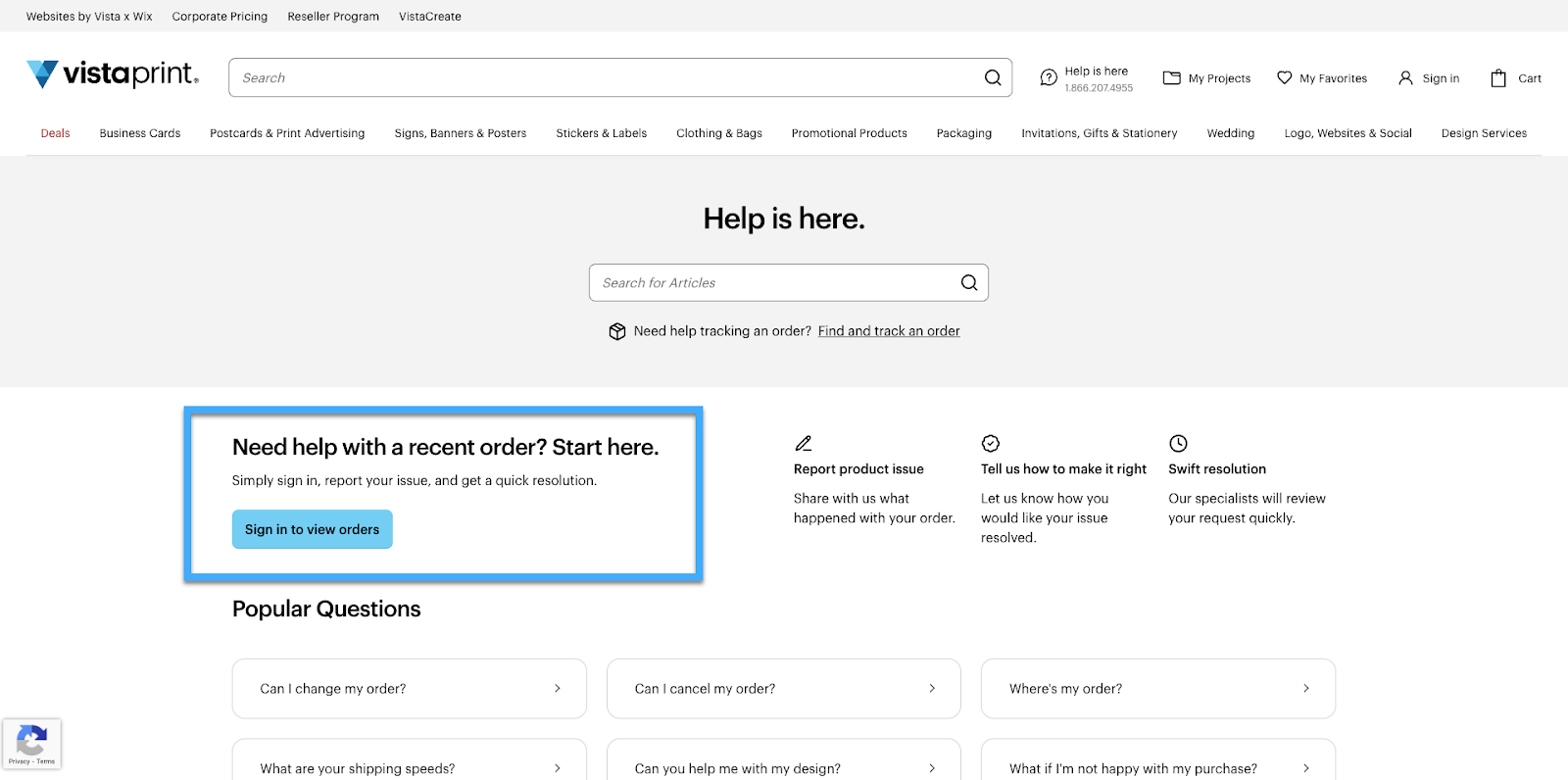
If you're still missing part of your order, please let us know so we can resolve the issue for you. On the Help Centre front page, you'll find the option ‘Need help with a recent order? Start here’.
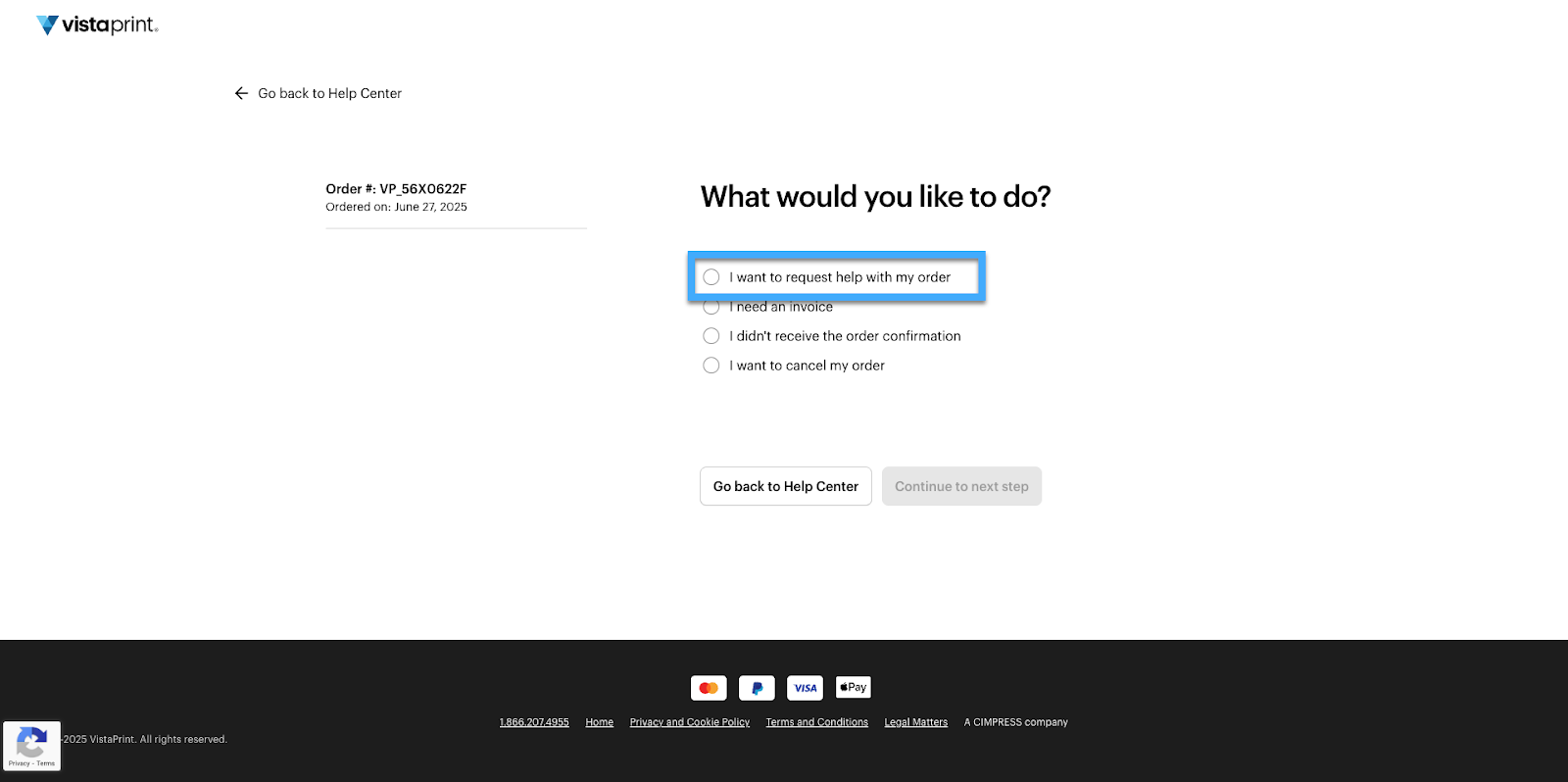
Select an order
We'll show you a list of all your recent orders. Select an order from the list and choose ‘Get help with this order’.
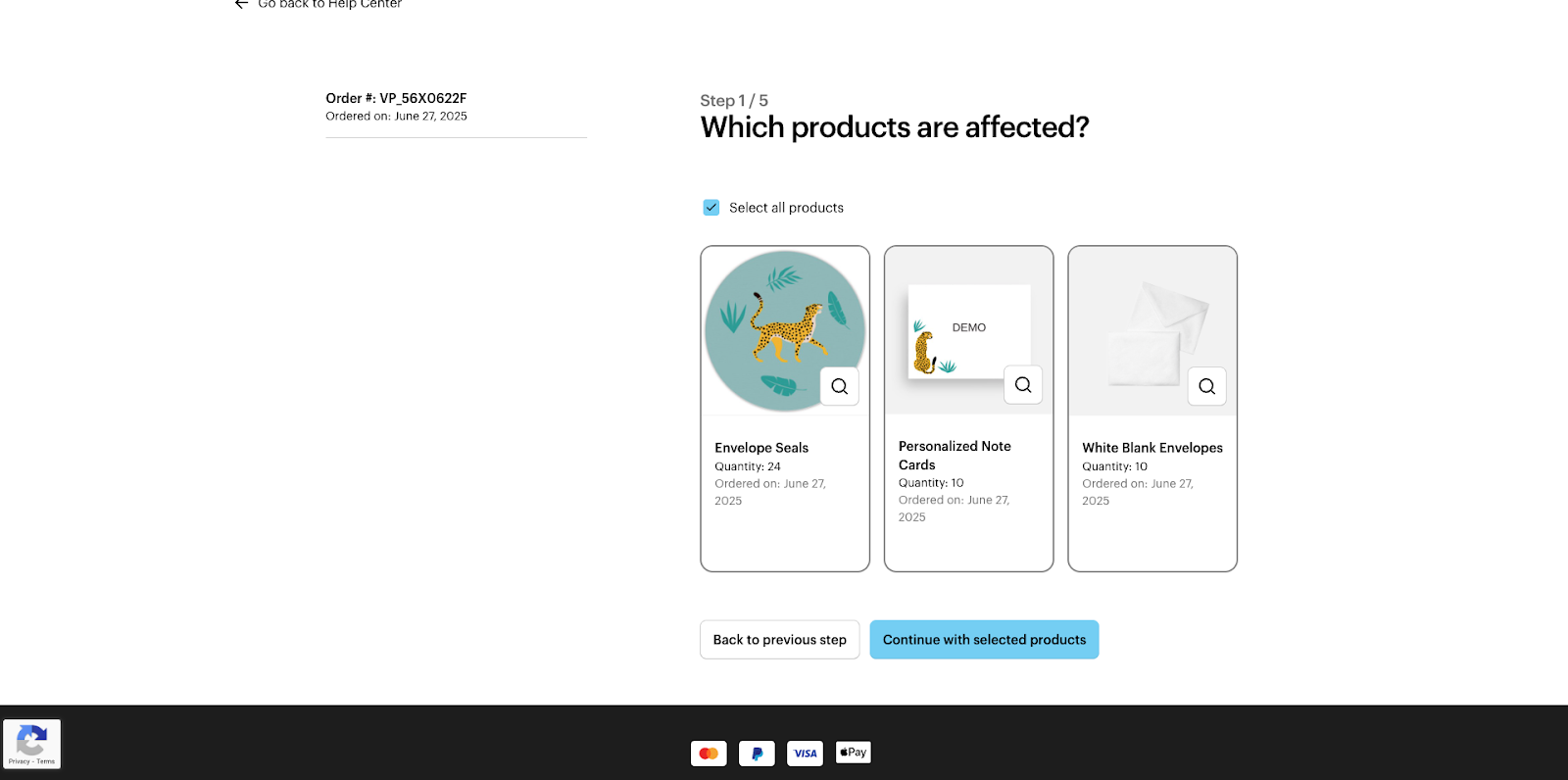
Select which products are missing
If everything is affected, choose ‘Select all products’.
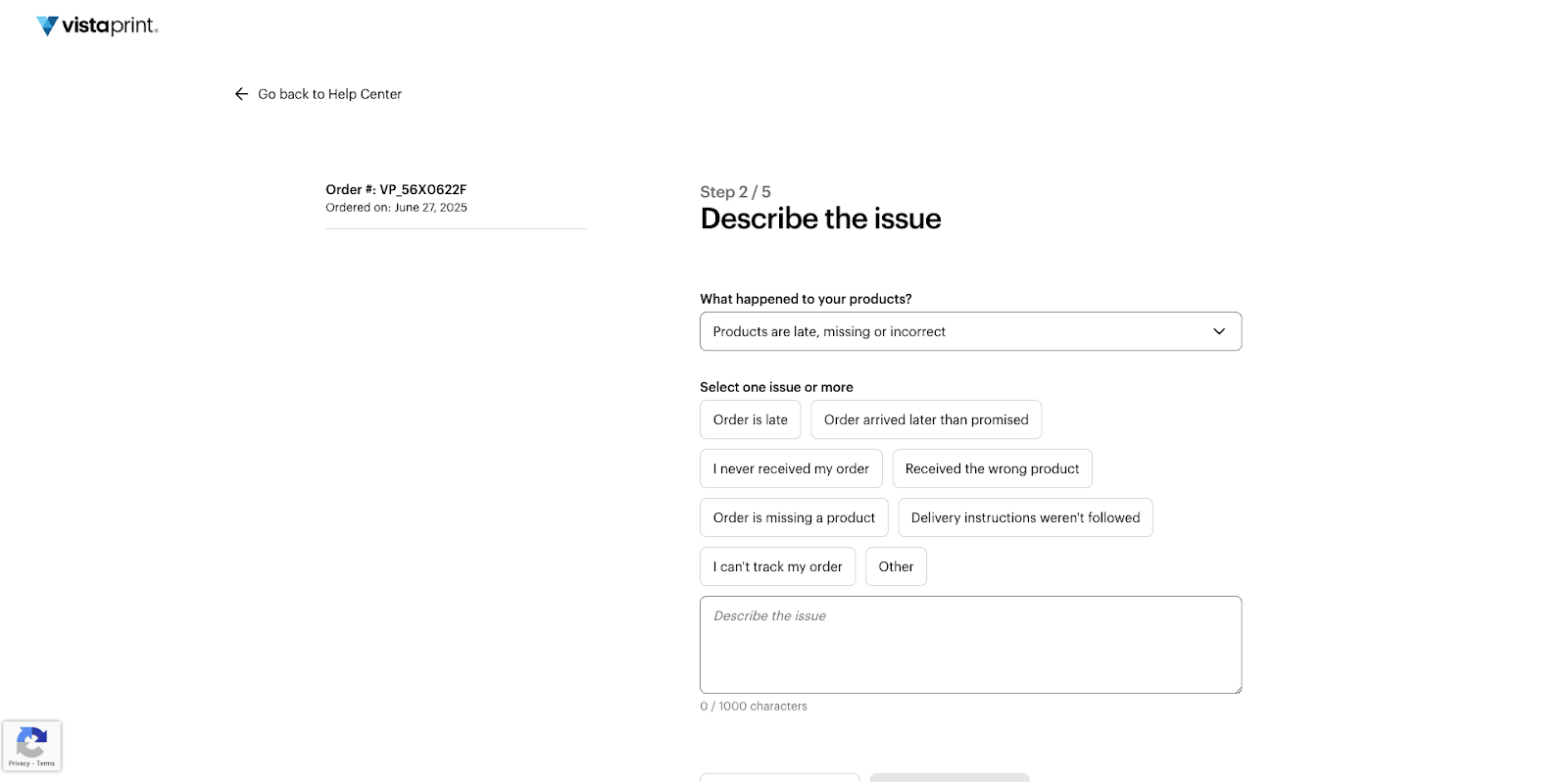
Select an issue from the drop-down menu
For example ‘Products are late, missing or incorrect’. Then, select the options that best describe your situation. You can choose multiple issues and add a description.
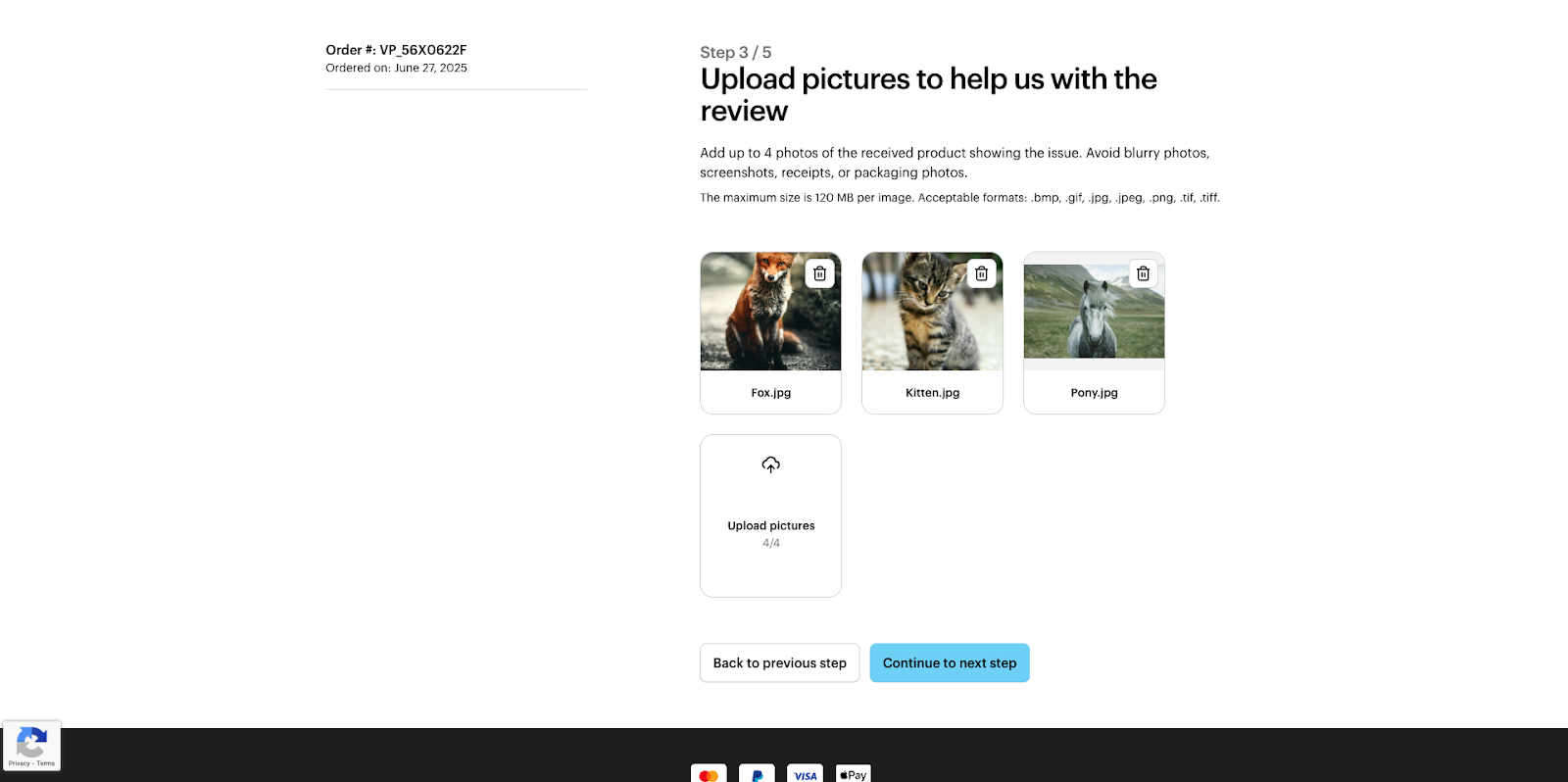
Upload Images
You can upload up to four pictures to help us understand the issue.
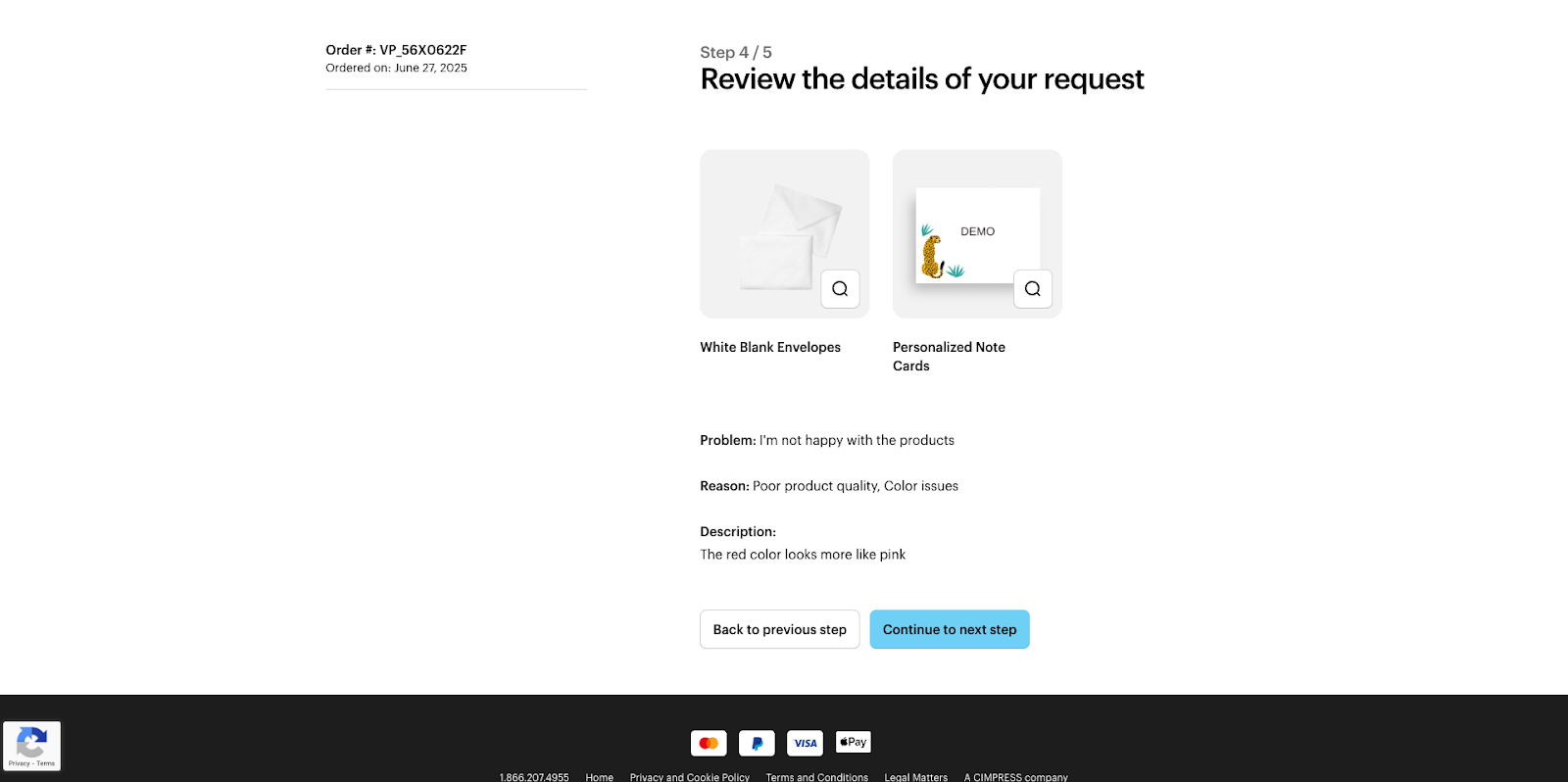
Review your request
Check that all the details of your request are correct. When you're ready, select ‘Continue to next step’.
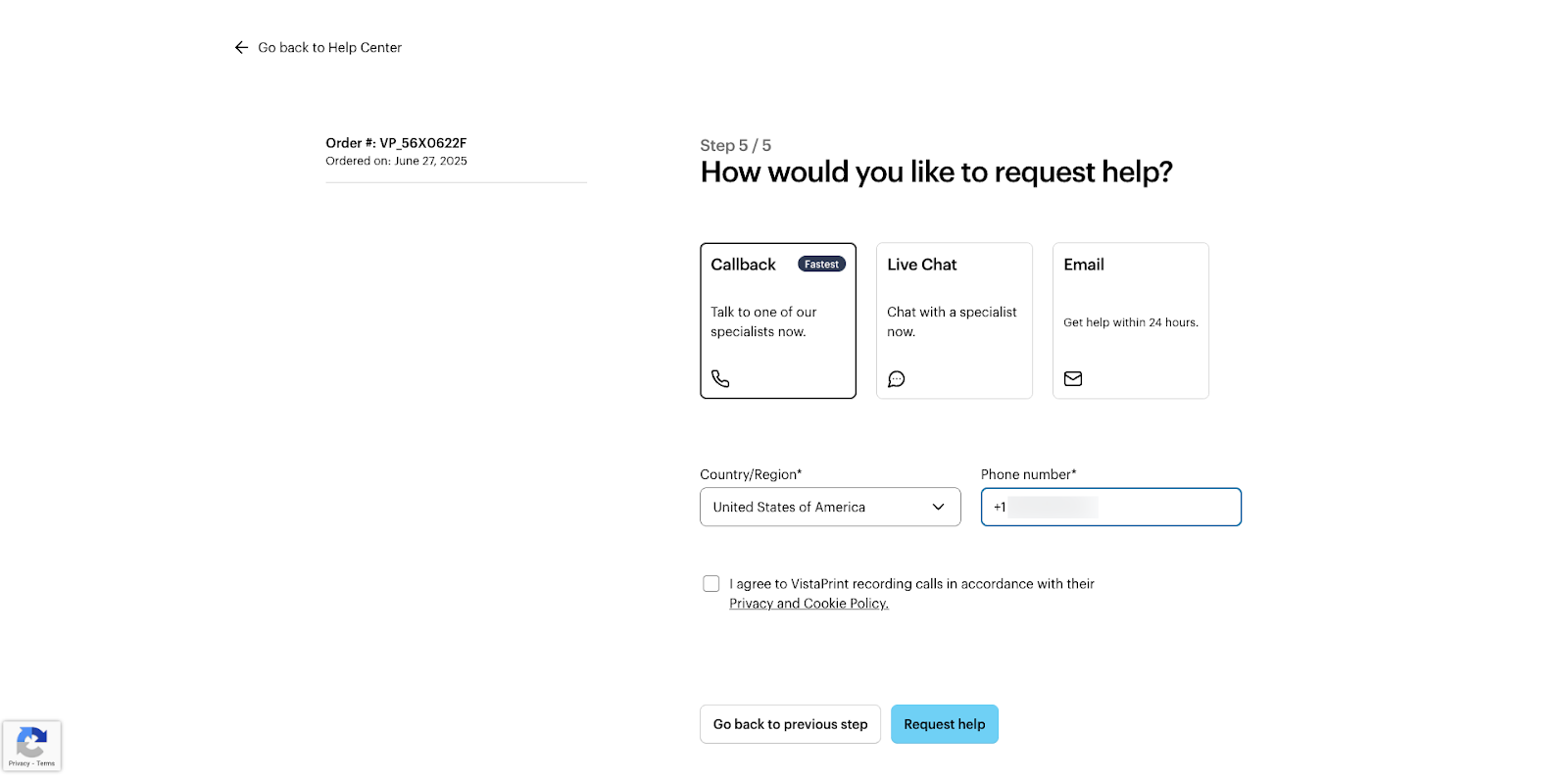
Choose a contact method
Choose how you’d like our Customer Support team to contact you. For example, you can request a call back, start a chat or receive an email.
Wait for confirmation
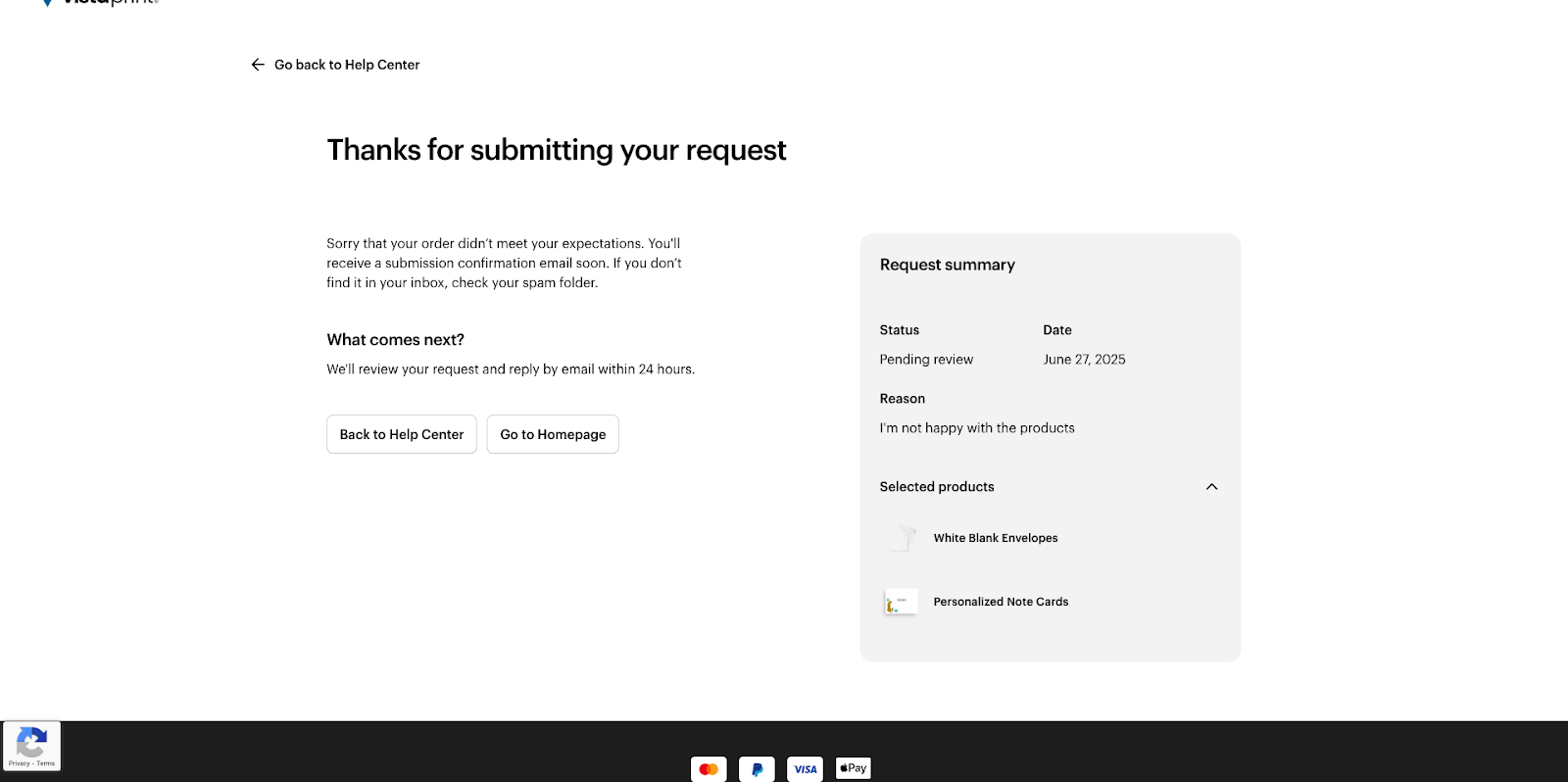
You have now submitted your request. We'll send you a confirmation email to confirm we received it. In most cases, we'll get back to you within 24 hours.